Salesforce Workflow Automation: Flow, Use Cases & Best Tips
At AI Flow Chat
Contents
0%Every manual task inside your CRM, updating a lead status, sending a follow-up email, assigning a case to the right rep, costs time you could spend on work that actually moves revenue. Salesforce workflow automation eliminates that drag by letting you build rules and logic that handle repetitive processes without human intervention, directly inside the platform millions of sales and marketing teams already use.
Salesforce has evolved its automation toolkit significantly over the years. The legacy Workflow Rules and Process Builder tools are now being replaced by Salesforce Flow, a single, more powerful engine that consolidates everything into one interface. If you've been putting off the migration or you're setting up automation for the first time, understanding how these pieces fit together is essential before you build anything.
This article breaks down what Salesforce workflow automation actually is, how Flow Builder works, real use cases across sales, support, and marketing teams, and the best practices that separate clean automations from ones that break at scale. Whether you're an admin configuring flows or a marketer trying to streamline lead routing, you'll walk away with a clear picture of what's possible and where to start.
At AI Flow Chat, we build tools that help creators and marketers automate their content workflows visually, so we think about automation design constantly. That same mindset applies here: the goal isn't just to automate, but to automate in a way that's repeatable, transparent, and easy to maintain.
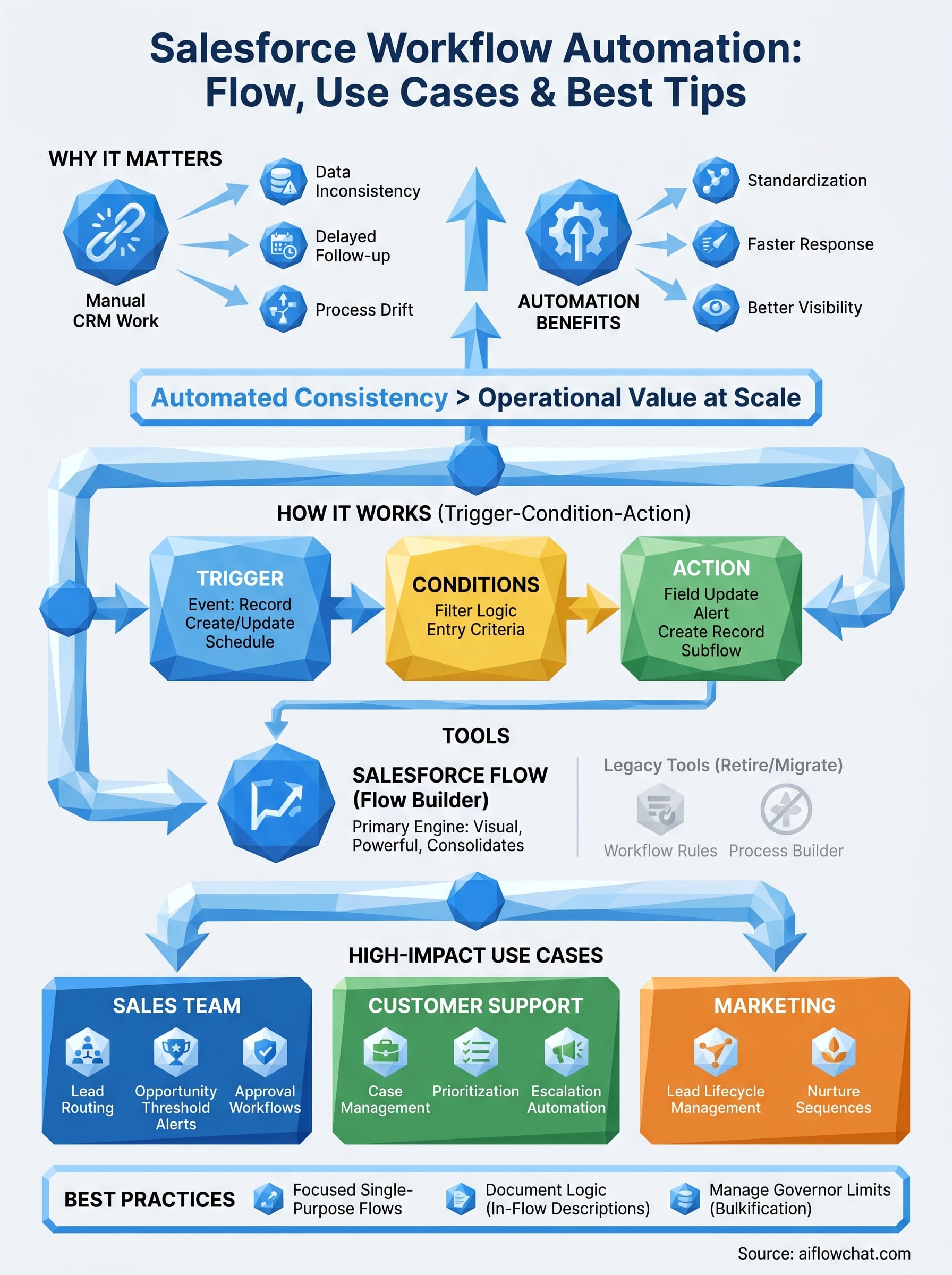
Why Salesforce workflow automation matters
The CRM your team uses every day is only as useful as the data inside it, and that data degrades fast when humans are responsible for every update. Salesforce workflow automation exists to close the gap between what your team should be doing and what actually gets done. When you automate the repetitive, rules-based work that fills your reps' days, you free them to focus on the high-judgment activities that genuinely require a person: building relationships, handling objections, and closing deals. That shift in how time gets spent is the core reason automation has moved from a technical project to a business priority.
The cost of manual CRM work
Manual CRM processes create three specific problems that compound over time: data inconsistency, delayed follow-up, and process drift. When a rep has to manually update a record, assign a task, or trigger a notification, those steps get skipped whenever the workload spikes. One missed update becomes a misattributed lead. One delayed follow-up becomes a lost deal. Multiply that across a team of twenty reps over six months, and your CRM data no longer reflects reality. Decisions get made on stale information, and the tool your organization paid for becomes a liability instead of an asset.
The financial cost is measurable too. Research from McKinsey consistently shows that sales reps spend less than a third of their time actually selling, with the rest absorbed by administrative work, data entry, and internal coordination. Automating even a fraction of that administrative burden returns meaningful hours to your team each week. When you stop treating automation as a technical upgrade and start treating it as a core operational decision, the ROI appears quickly in both productivity numbers and pipeline accuracy. The teams that feel it most are the smaller ones, where every wasted hour has an outsized cost.
Automated processes don't get tired, forget steps, or skip tasks when the workload spikes. That consistency is what makes them operationally valuable at scale.
How automation changes team performance
Automation doesn't just save time. It standardizes the way your team operates, which means a new rep follows the same process as your most experienced one. Lead routing, follow-up timing, escalation triggers, approval workflows: all of these can run the same way every time without relying on individual memory or discipline. That consistency is what allows you to analyze performance accurately, because you're finally comparing like-for-like data across your team rather than comparing different personal habits that happen to live in the same system.
Teams that implement structured automation also respond to leads and service requests faster. Speed-to-lead is one of the most studied variables in sales conversion, and the data is consistent: the faster you respond to an inbound lead, the higher your conversion rate. When your CRM automatically assigns leads, sends an introductory email, and creates a follow-up task for the rep within seconds of a form submission, you compress that response window without adding headcount. That kind of operational leverage changes what a small team can realistically accomplish in a competitive market.
Automation also creates better visibility for managers and operations teams. When processes run through structured flows rather than informal habits, managers can see exactly where deals stall, where cases pile up, and where the real bottlenecks are. That visibility turns CRM data into a diagnostic tool rather than just a historical record. Instead of asking why this quarter's numbers look off, you can trace the answer back to a specific step in a specific process and fix it directly. That's the kind of clarity that makes scaling a team far less chaotic.
How Salesforce workflow automation works
Salesforce workflow automation operates on a straightforward logic: something happens, a set of conditions are evaluated, and then an action executes automatically. Every automation you build follows this pattern, regardless of whether you're using a simple record-update rule or a complex multi-branch Flow that spans several objects. Understanding this core model before you build anything will save you significant troubleshooting time later.
The trigger-condition-action model
Every automation in Salesforce starts with a trigger, the event that kicks the process off. That trigger is typically a record being created, updated, or deleted, but scheduled triggers running at a specific time relative to a date field are also common. Once the trigger fires, Salesforce evaluates your entry conditions to decide whether the automation should actually run for that specific record. If the conditions pass, the flow executes its defined actions.
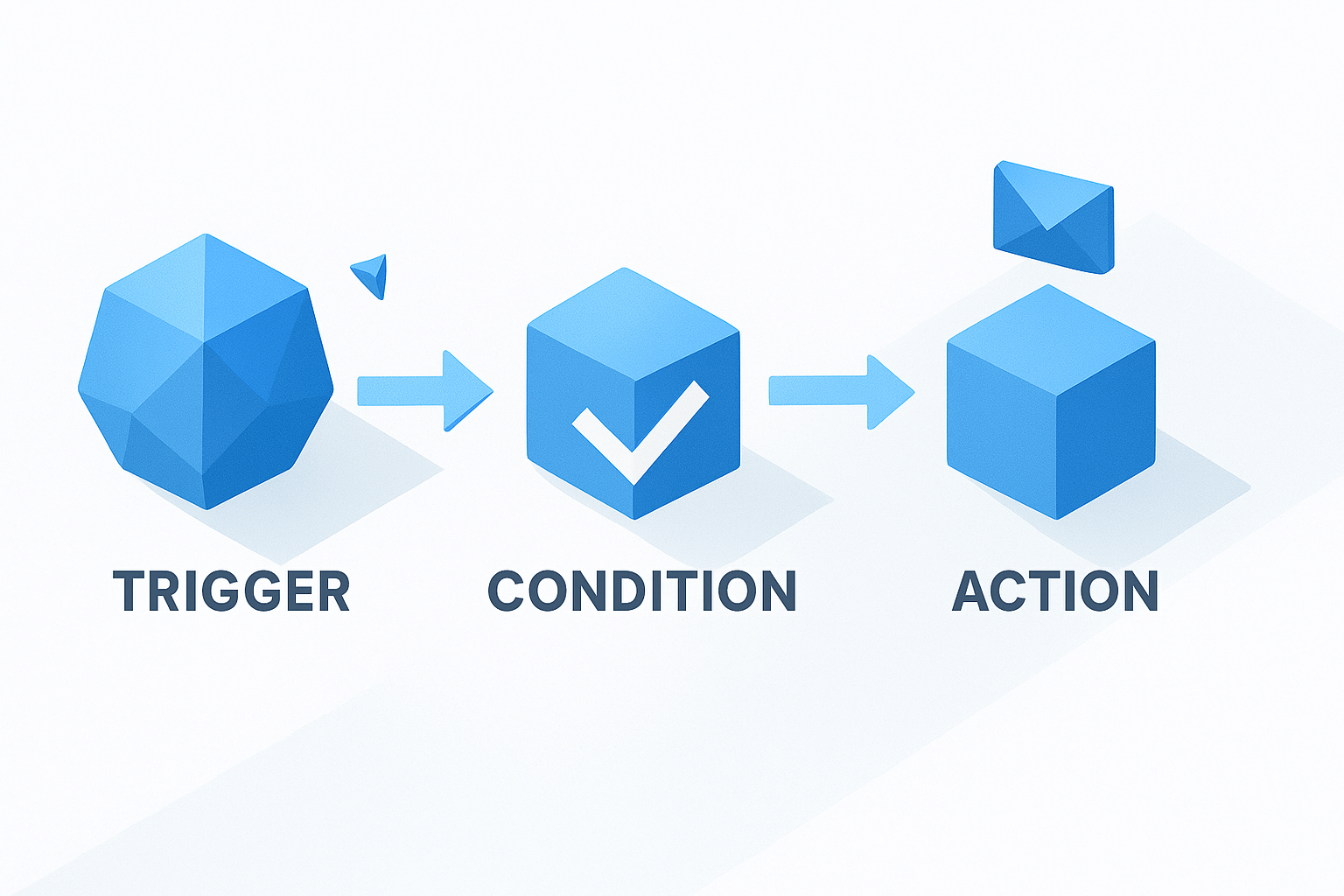
Actions can range from simple field updates and email alerts to creating related records, calling external systems via HTTP, or launching a subflow. The key insight here is that conditions act as your filter, so you're not running logic against every record indiscriminately. A well-structured trigger-condition-action model keeps your automation lean and predictable, which matters a great deal when your org scales to thousands of records per day.
The trigger-condition-action model is the building block of every automation in Salesforce. Get clear on all three components before you build, not after.
How records and data move through a flow
When a Flow runs, Salesforce loads the record data into memory and processes your logic against it. You can read field values, make decisions based on those values, update related records through lookups, and write data back to the database, all within a single automated run. This happens server-side, meaning no user action is required once the flow triggers.
Flows can also reference data from related objects, which is where the real power becomes clear. A Flow triggered by an Opportunity can look up the Account it belongs to, check the Account's tier, and route the deal accordingly. That kind of cross-object logic is what separates Salesforce's automation engine from simpler rule-based tools, and it's why planning your data model before building flows is worth every hour you invest in it.
Salesforce automation tools you can use today
Salesforce has consolidated its automation capabilities under one primary platform: Salesforce Flow. Understanding what each tool does and where it fits in your build plan will save you from duplicating effort or picking the wrong tool for a given process. If you're new to salesforce workflow automation or migrating from older tools, this is the map you need before you open Flow Builder.
Salesforce Flow and Flow Builder
Salesforce Flow is the umbrella term for the platform's entire automation engine. Inside that umbrella, Flow Builder is the visual, point-and-click interface where you actually design your automations. You drag elements onto a canvas, connect them with branching logic, and configure each element without writing a single line of code. The tool supports four core Flow types: Screen Flows for guided user experiences, Record-Triggered Flows for automation based on database changes, Schedule-Triggered Flows for time-based logic, and Platform Event-Triggered Flows for event-driven integrations.
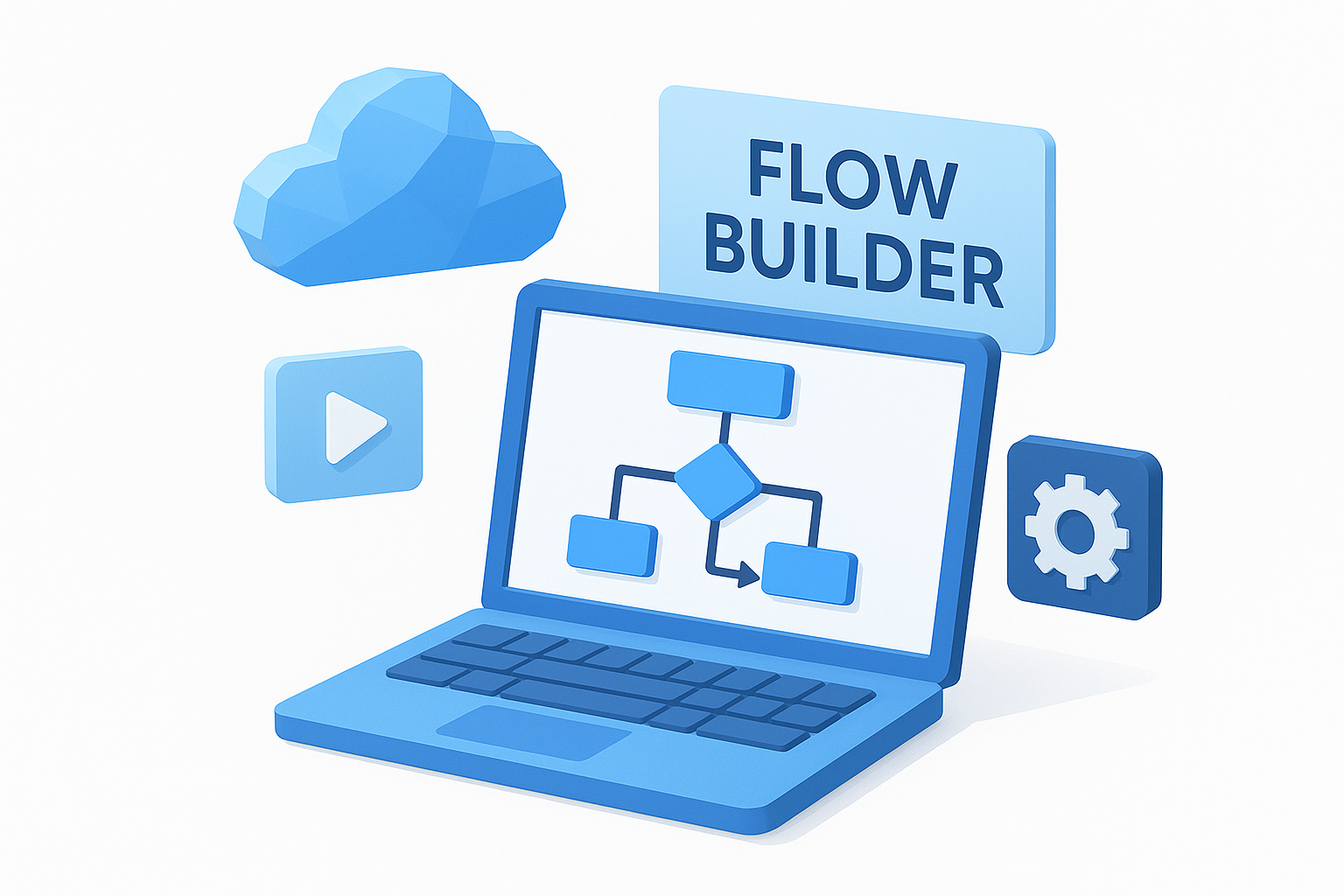
Flow Builder is the single interface Salesforce wants everyone building in. If you're starting from scratch today, start here.
Record-Triggered Flows are the most commonly used type because they handle the scenarios most teams care about first: updating related records automatically, sending alerts when a deal reaches a threshold, or creating tasks when a case is opened. Schedule-Triggered Flows are equally important for time-sensitive processes like sending renewal reminders a set number of days before a contract expires. Knowing which type matches your use case before you open Flow Builder will keep your build clean from the start.
Legacy tools you will eventually replace
Workflow Rules and Process Builder still run in many Salesforce orgs, but Salesforce has announced their retirement. Workflow Rules handle simple field updates and email alerts based on single-object criteria. Process Builder extended that with some multi-object logic, but it introduced performance problems at scale because it runs one process per trigger event, which compounds when multiple processes fire on the same record. Neither tool receives new feature development, which means the ceiling on what you can do with them is already set.
Salesforce has provided a built-in migration tool inside Setup to help you convert existing Workflow Rules and Process Builder automations directly to Flow. The migration is not always one-click clean, but running it gives you a useful starting point. Your priority should be stopping all new builds in these legacy tools and routing any new automation requirements directly into Flow Builder.
High-impact use cases across teams
Salesforce workflow automation delivers the clearest returns when it targets the specific moments where manual work creates the most friction. Rather than automating for the sake of it, the highest-value implementations focus on handoffs, time-sensitive actions, and repetitive tasks that happen at volume. The three teams that tend to see the fastest ROI are sales, customer support, and marketing.
Sales team automation
Sales automation inside Salesforce centers on lead routing, opportunity management, and approval workflows. When a lead comes in through a web form, a Record-Triggered Flow can immediately evaluate the lead's attributes, assign it to the right rep based on territory or product line, create a follow-up task with a due date, and send a personalized introductory email, all before a human even opens Salesforce. That sequence, which used to require a sales ops person manually sorting leads each morning, now runs in seconds regardless of when the lead arrives.

Automating lead assignment and first-touch follow-up cuts response time from hours to seconds, which directly impacts conversion rates for inbound pipelines.
Opportunity automation handles the complexity that builds deeper in your pipeline. You can configure flows that automatically notify a manager when a deal reaches a specific dollar threshold or moves past a defined stage without activity in the last seven days. Approval workflows for discounting can route to the right approver based on the discount percentage, log the decision, and update the record automatically once approved.
Customer support workflows
Support teams run on case management, and automation handles the scaffolding that reps shouldn't be doing manually. When a new case opens, a Flow can check the account tier, set the priority level, assign it to the correct queue, and send the customer an acknowledgment email with a case number. That routing logic, applied consistently across every case, ensures your highest-value accounts receive the right level of attention every time.
Escalation automation is where support teams recover the most time. Instead of a manager reviewing open cases manually each morning, a Schedule-Triggered Flow scans for cases that have been open beyond your defined SLA window and automatically escalates them, notifies the assigned rep's manager, and logs a timestamp on the record for reporting.
Marketing and lead lifecycle management
Marketing teams use automation to manage lead status transitions and trigger nurture sequences based on real CRM data rather than guesses. When a lead's score crosses a threshold, a Flow can update the lifecycle stage, notify the assigned rep, and enroll the contact in the appropriate campaign. That handoff from marketing to sales becomes a structured, trackable event instead of a manual email chain.
Best practices for reliable automation
Building a flow that works once is straightforward. Building salesforce workflow automation that holds up six months later, after record volume has grown and three other admins have touched the org, requires deliberate design decisions from the start. The practices below aren't theoretical; they're the specific habits that separate orgs where automation runs cleanly from orgs where every deployment triggers a debugging session.
Keep flows focused and single-purpose
The most common mistake in Flow Builder is packing too many scenarios into one flow. When you handle five different business cases inside a single record-triggered flow, every change to that flow carries risk across all five scenarios at once. A more durable approach is to build one flow per business process and let each flow handle exactly one job.
Single-purpose flows are easier to test, easier to hand off to another admin, and far easier to deactivate safely when a business requirement changes. If two flows are triggering on the same object, use a master orchestration flow to coordinate them rather than merging conflicting logic into one sprawling build that nobody wants to touch.
One flow, one job. That rule alone prevents most of the maintenance headaches that come with large automation libraries.
Document your logic before you build
Before you open Flow Builder, write out exactly what the flow should do in plain language. Define the trigger, the entry conditions, and every action the flow will take. This step forces you to catch logic gaps before they become bugs in production. Keep that documentation inside the flow's description field and any relevant internal wiki so the next person who opens it understands the original intent immediately.
Add inline descriptions to each element inside the canvas itself. Flow Builder gives you a description field on every decision node, action, and assignment element. Using those fields consistently means your flow is self-documenting, which matters far more than you'd expect when you return to a build you haven't opened in four months.
Manage governor limits proactively
Salesforce enforces governor limits to protect shared infrastructure, and flows running at high volume can hit those limits in ways that surface as confusing errors. The most important limit to design around is the DML statement limit per transaction, which caps how many database writes can happen in a single execution context.
Bulkifying your flows, meaning designing them to process collections of records rather than looping through records one at a time, is the single most effective way to stay within safe boundaries. If your flow processes leads at form-submission volume, a non-bulkified loop will fail under load in ways that are frustrating to diagnose after the fact.
Testing, troubleshooting, and maintenance
A flow that passes your logic review on paper can still break in production if you skip structured testing. Salesforce workflow automation requires a disciplined testing approach because flows often interact with multiple records, related objects, and downstream processes that are easy to overlook during the build phase. Treating testing as a final checkbox rather than an integrated step is the fastest way to ship a flow that creates more problems than it solves.
Test in a sandbox before activating
Your sandbox environment exists precisely for this. Before you activate any new flow in production, run representative test scenarios against it in a full or partial sandbox that mirrors your production data structure. Build test records that cover your expected entry conditions, your edge cases, and the scenario where the flow should not trigger at all. Confirming all three outcomes gives you genuine confidence, not just optimism.
Debug Mode inside Flow Builder lets you run a flow step by step and inspect the value of every variable at each point in the execution. Open it by clicking the Debug button in the toolbar, then walk through your test scenario manually. You can see exactly which branch executes, which values get assigned, and where the logic diverges from what you expected. This tool alone will cut your troubleshooting time significantly compared to reading raw debug logs.
Run your edge cases and failure scenarios with the same rigor you apply to your happy path. Most production bugs live in the conditions you didn't think to test.
Read debug logs when something breaks
When a flow fails in production, your first stop is Setup > Debug Logs. Assign a trace flag to the user or automated process that triggered the failure, reproduce the issue, then open the resulting log and filter for FLOW entries. The log will show you the exact element that threw the error, the record ID involved, and the field values at the time of failure. That information is specific enough to pinpoint the fix without guessing.
Flow fault paths are a parallel safety net you should build into any flow that performs DML operations or callouts. A fault connector lets you route errors to a notification record or send an alert to an admin rather than silently failing. Flows that fail silently are the most dangerous kind because the process appears to run while nothing actually executes.
Plan for ongoing maintenance
Salesforce releases three major updates per year, and each one can affect how your flows behave. Schedule a quarterly audit of your active flows to verify they still reflect current business rules, check that retired fields or objects haven't created broken references, and confirm that governor limit headroom remains adequate as record volume grows.
Keep a running change log for each flow, either in the description field or a linked internal document, so every modification includes a date, the reason for the change, and the name of the person who made it. That record protects you during audits and makes onboarding a new admin significantly faster.
Next steps you can take today
You now have a complete picture of how salesforce workflow automation works, which tools to use, and how to build flows that hold up over time. The most productive next move is to pick one high-friction manual process your team runs daily and map it through the trigger-condition-action model before you open Flow Builder. Starting with a single, well-scoped use case beats planning a large automation rollout that never ships.
After you build and test that first flow, audit your existing Workflow Rules and Process Builder automations and prioritize migrating the ones your team relies on most. Document each flow as you build it so your library stays maintainable as your org grows.
If you're looking to apply the same visual, systematic thinking to your content and marketing workflows, AI Flow Chat gives you an infinite canvas to map, automate, and scale your content production the same way you'd architect a clean Salesforce flow.
Continue Reading
Discover more insights and updates from our articles
Choose an AI model for scripts, marketing copy, coding, research, long documents, and quick everyday work using a practical quality, speed, and credit-cost framework.
Compare eight current Poppy AI alternatives for visual research, creator workflows, general AI work, grounded synthesis, automation, and reusable delivery.
A practical method for turning a scattered content process into a clear AI-assisted flowchart with source context, review checks, and a reusable output.