Make Workflow Automation: Step-by-Step Tutorial + Examples
At AI Flow Chat
Contents
0%Make (formerly Integromat) lets you connect apps, move data between them, and build automated sequences without writing code. If you've been searching for how to make workflow automation a reality for your marketing or content operations, this platform is one of the most popular starting points, and for good reason. It handles everything from simple two-app integrations to complex multi-step scenarios with conditional logic, filters, and error handling.
But here's what most tutorials skip: Make is built for general-purpose automation. It connects your CRM to your email tool, syncs spreadsheets, and triggers Slack messages. What it doesn't do well is handle AI-native content workflows, things like analyzing viral videos, extracting hooks from competitor ads, or generating platform-specific content from reference materials. That's where tools like AI Flow Chat fill the gap, giving creators and marketers a visual canvas specifically designed for AI content production and repeatable content workflows.
This guide walks you through how Make works, step by step. You'll learn how to build your first scenario from scratch, see real examples of marketing automations, and understand where Make fits (and where it doesn't) in a modern content stack. Whether you're a solopreneur trying to stop doing everything manually or an agency owner scaling output across clients, you'll leave with a clear picture of what Make can automate and when you might need something purpose-built for AI-driven content instead.
What Make workflow automation is
Make workflow automation refers to building sequences of connected app actions on the Make platform, where one event triggers a chain of steps that move data between your tools automatically. Make uses a visual, flowchart-style interface called the scenario builder, and you construct automations by dragging modules onto a canvas and linking them together. The platform supports thousands of app integrations, which means you can connect tools like Gmail, Google Sheets, Airtable, Slack, HubSpot, and hundreds more without writing a single line of code. When you make workflow automation work on this platform, you are essentially telling your apps what to do and in what order, so you can stop doing repetitive tasks by hand.
The core idea is simple: something happens in one app, and Make reacts by taking one or more actions in other apps.
The core components of a Make scenario
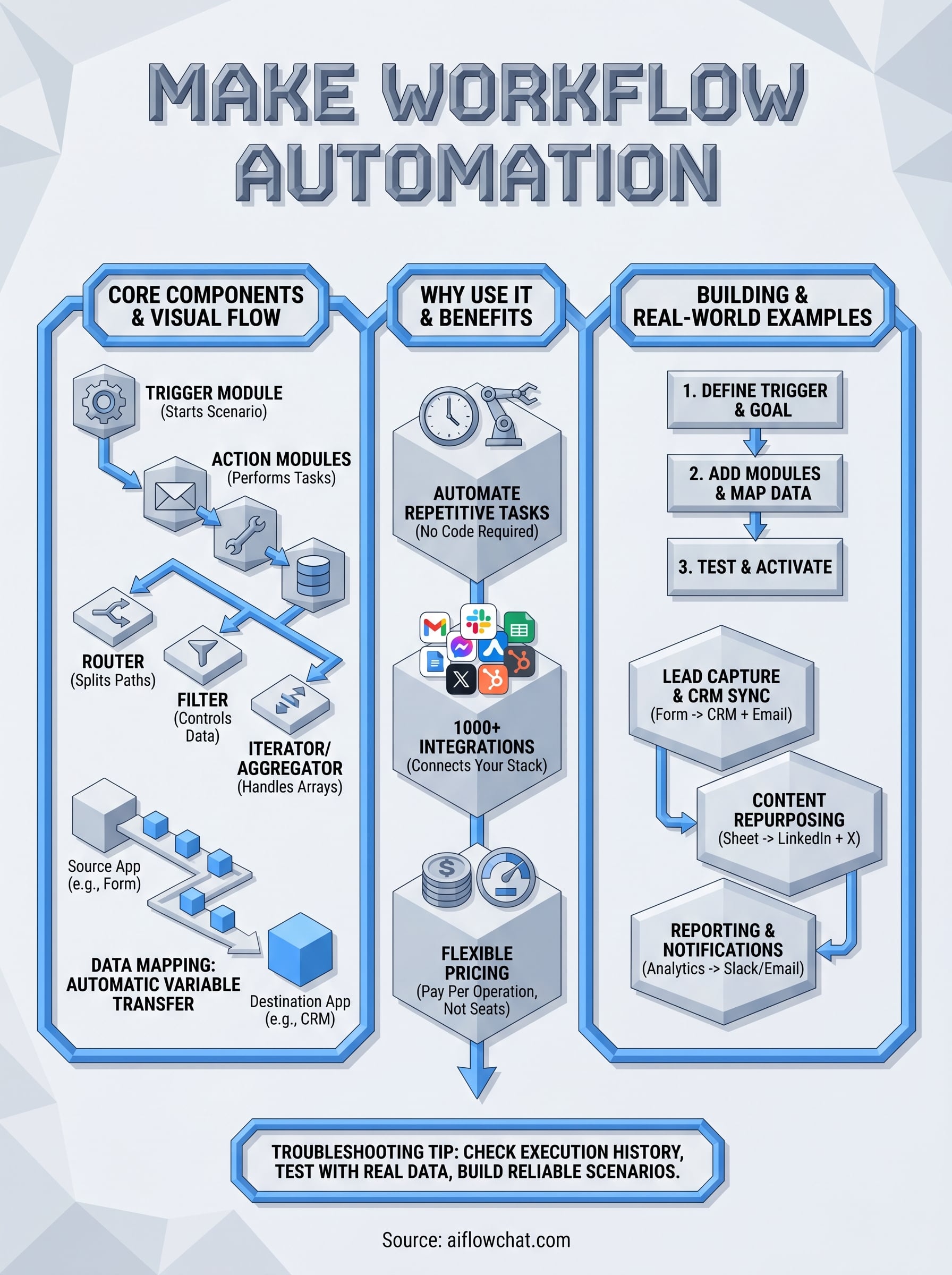
Every automation you build in Make is called a scenario, and each scenario contains at least two parts: a trigger and one or more action modules. The trigger is the event that starts everything, such as a new row added to a Google Sheet, a form submission, or a new email in a specific inbox. The action modules are what Make does in response, and you can stack as many actions as your workflow requires. Understanding these components is the foundation you need before you start building anything.
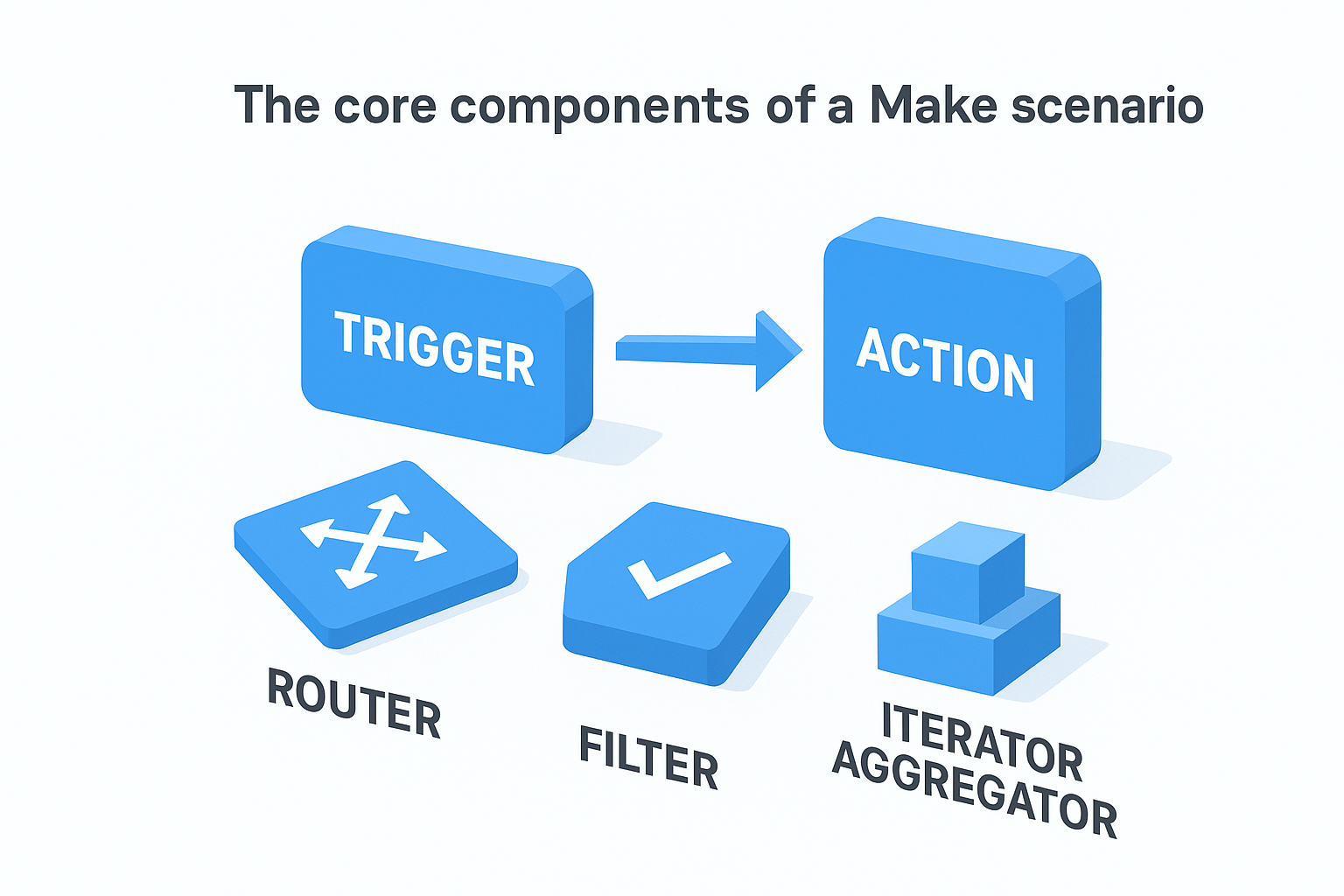
Here is how the main building blocks break down:
- Trigger module: The starting point of every scenario. This watches for a specific event in a connected app.
- Action module: The step Make executes after the trigger fires. You can chain multiple action modules together.
- Router: Splits your scenario into separate paths based on conditions you define, so different records or data types can follow different routes.
- Filter: A condition you place between modules to control which data passes through to the next step.
- Iterator and aggregator: Tools for breaking apart arrays of data and then reassembling them after processing, which is useful when you work with lists or batches of records.
How Make handles data between apps
When Make runs a scenario, it pulls data from your trigger and passes it forward as mapped variables to each subsequent module. For example, if your trigger captures a new contact in a form tool, Make extracts fields like name, email, and phone number, and you can map those fields directly into the action module that creates a new record in your CRM. No manual copy-pasting is required because the data flows automatically once you set the mapping up correctly.
Make also gives you scheduling control, so you can decide how often each scenario checks for new trigger events. Some scenarios run every minute, others every hour, or only when a webhook fires in real time. The frequency you choose affects how many operations your account consumes, since Make bills based on operations rather than a flat rate. One operation equals one module execution, so a five-module scenario that processes ten records in a single run consumes fifty operations. Knowing this upfront helps you build efficient scenarios and avoid burning through your monthly operation limit faster than expected.
Why people use Make for automations
Most people come to Make because they need to stop doing the same repetitive tasks every day and they don't have a developer on call to build custom solutions. Make sits in a useful middle ground: it's more powerful than simple two-step tools but doesn't require you to write code or manage infrastructure. When you want to make workflow automation part of your daily operations, Make gives you a visual environment where the logic of your process is visible and editable without a technical background.
The platform's biggest draw is that non-technical users can build automations that would otherwise require hours of developer time or expensive software licenses.
The integration library reduces tool sprawl
One reason teams adopt Make is the sheer number of apps it connects. Over 1,000 app integrations are available on the platform, which means you can usually find a native connector for whatever tool you already use. Rather than maintaining separate point-to-point connections between every app in your stack, Make lets you build a single scenario that touches multiple tools at once, reducing the patchwork of manual processes that builds up over time in most small business operations.
The breadth of available connections also means you're less likely to hit a wall when you add a new tool to your stack. You add the new module to an existing scenario instead of rebuilding your whole workflow from scratch.
Flexible pricing fits sporadic usage patterns
Make bills by operations rather than seats or a flat monthly fee, which works well for creators and agencies with uneven workload patterns. During a high-output month when you're running dozens of automations daily, you use more operations. During slower periods, your costs stay low. This structure is a direct contrast to tools that charge a fixed rate regardless of how much you actually use them.
Smaller teams and solopreneurs in particular benefit from this model because they can start on a free or low-cost plan, test their automations thoroughly, and only upgrade when their volume justifies it. The flexibility removes the risk of paying for capacity you don't use.
How Make scenarios work
When you build a scenario in Make, you're essentially drawing a map of what should happen and when. Every scenario runs on a fixed cycle, meaning Make checks the trigger source at the interval you set and processes any new data it finds. The platform uses a module-based architecture where each step in your workflow is a self-contained unit that receives input, does something with it, and passes output forward to the next module.
The execution flow from trigger to output
Every Make scenario follows a linear execution path by default, starting at the trigger and moving left to right through each module in sequence. When the trigger fires, Make collects the relevant data bundle, which is the structured set of fields that came in from the source app, and carries it through each subsequent action module. If you've set up a router to create branching paths, Make evaluates the filter conditions on each branch and sends the data bundle down whichever path matches.
The execution order is fixed once you configure it, which means you always know exactly which step runs before the next, making debugging far more straightforward.
Understanding this flow matters when you want to make workflow automation reliable rather than fragile. If any module fails, Make can halt the scenario, skip the failed bundle, or route it to an error handler you've configured. You control how failures behave, which keeps your data clean and your automations predictable.
How data mapping connects your apps
Data mapping is the process of telling Make which fields from your trigger should feed into which fields in your action modules. When you open an action module, Make displays a panel of available variables pulled from every upstream module in the scenario. You click the variable you want, drop it into the correct field, and Make handles the transfer automatically at runtime.
This system eliminates manual re-entry between tools, but it also means the field structure of your source data matters a lot. If your trigger pulls inconsistent field names or empty values, those gaps carry forward through every downstream module. Checking your data structure before you start building saves you significant troubleshooting time once the scenario goes live.
Build your first Make scenario step by step
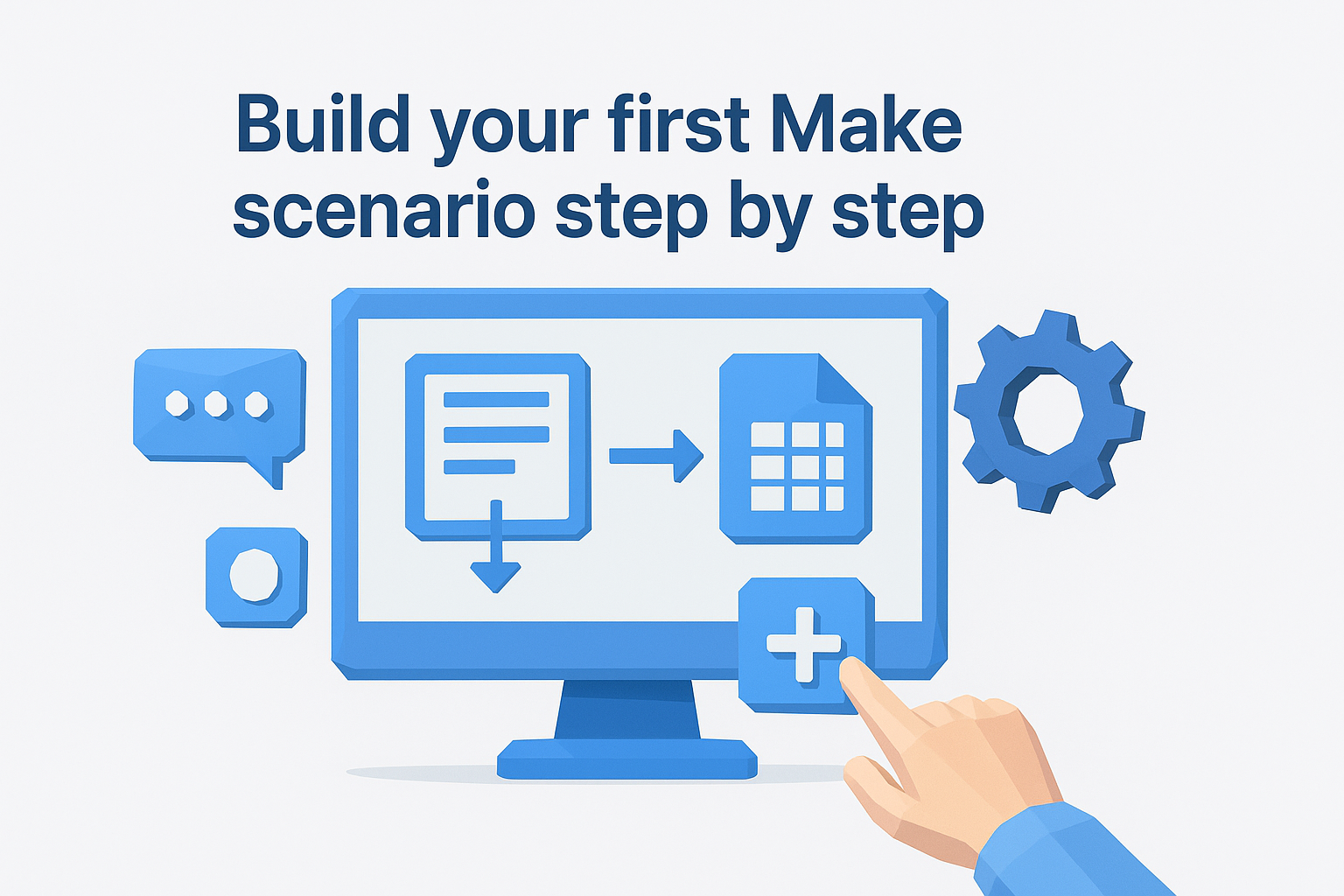
The fastest way to understand how Make workflow automation works is to build something simple and real. A good starting scenario for most marketers is one that captures new form submissions and logs them automatically to a Google Sheet so nothing falls through the cracks. You don't need prior experience with Make to get this working, and the process will teach you the core mechanics you'll use in every scenario you build after this one.
Start with a clear trigger and goal
Before you open the Make editor, write down exactly what should happen and when in plain language. For example: "When someone submits my contact form, add their name, email, and message to a Google Sheet row." That sentence gives you your trigger, your data fields, and your destination app. Starting with that kind of specific outcome keeps you from overbuilding a scenario before you understand how the pieces connect.
Here are the steps to build this scenario inside Make:
- Log in to Make and click Create a new scenario.
- Click the empty module circle and search for your form tool, such as Typeform or Google Forms.
- Select the "Watch Responses" trigger and connect your account.
- Choose the specific form you want to watch and set the schedule to every 15 minutes.
- Click the "+" button to add an action module, then search for Google Sheets.
- Select "Add a Row" and connect your Google account.
- Choose your spreadsheet and sheet tab, then map the form fields to the correct columns.
- Click "Run once" to test the scenario with a live submission.
- If the test passes and data appears in your sheet, toggle the scenario on.
Running a test before activating your scenario is the single most effective habit you can build as a Make user, because it catches mapping errors before they cause silent data loss.
Connect your apps and map the data
Mapping is where most first-time users slow down, and the fix is straightforward. When you open the Google Sheets action module, Make displays a variable panel on the right. Click each form field variable and drag it into the matching column field in the module. Make carries those values forward at runtime, so what you see in the test run is exactly what your live scenario will produce.
Workflow automation examples you can copy
Seeing real examples is the fastest way to understand what you can build once you know how to make workflow automation work in your stack. The scenarios below are practical and ready to adapt to your own tools. Each one solves a specific problem that marketers and creators deal with repeatedly, and you can replicate any of them using the same module-building process covered in the previous section.
Lead capture and CRM sync
When someone fills out a lead form on your site, you typically need that person's information in at least two places: your CRM and your email marketing tool. A Make scenario can handle both in a single run, pulling submission data and creating a new contact record in your CRM while simultaneously adding that person to the correct email sequence. You avoid duplicate data entry and the leads never pile up waiting for manual processing.
A common version of this automation triggers from a Typeform submission, creates a contact in HubSpot, and sends a personalized welcome email through Mailchimp in the same scenario run. The whole process completes in seconds after the form is submitted.
Content repurposing and publishing
Repurposing content across platforms is one of the highest-value tasks you can automate because it involves the same structured action repeated across multiple destinations. A scenario can watch for a new row in a Google Sheet, pull the blog post title and summary you enter there, and automatically publish a formatted update to LinkedIn or X without you opening either platform.
This type of automation works best when your source data stays clean and consistent, because Make maps exactly what you give it.
Reporting and Slack notifications
Teams that run paid ads or track content performance often need daily or weekly summary reports delivered without manual pulling and formatting. You can build a Make scenario that runs on a schedule, pulls data from Google Analytics or a spreadsheet, and sends a formatted Slack message or email digest to your team every Monday morning. The report arrives automatically, and your team stays aligned without a single manual export.
Troubleshooting and best practices
When you make workflow automation work inside Make, the problems that show up most often share a common root: mismatched data structures or incorrect assumptions about when a trigger fires. Before you spend time chasing down a broken scenario, check the execution history first. Make logs every run with a detailed breakdown of what each module received and what it output, so you can trace exactly where the data went wrong without guessing.
Common errors and how to fix them
Most failures in Make fall into a small set of categories. The error message Make shows you after a failed run is specific, and reading it carefully is faster than rebuilding modules from scratch. Mapping errors are the most frequent issue, usually because an upstream module returned an empty or unexpected value. The second most common problem is expired app connections, which happen when an OAuth token for a connected service times out and Make loses permission to access it.
Here are the errors you will encounter most often and what to do about each:
- Missing required field: A module expected a value that arrived empty. Add a filter before that module to stop runs where the field is blank.
- Connection error: Your app connection expired. Re-authenticate the affected module from the Connections panel in your account settings.
- Rate limit exceeded: The destination app rejected Make's request due to too many calls. Add a sleep module before the affected step or reduce your scenario schedule frequency.
- Data parse error: An iterator or aggregator received a format it didn't expect. Inspect the source output in your run history and adjust your mapping accordingly.
Build scenarios that stay reliable
Scenario reliability comes from building with failure in mind from the start rather than patching problems after they appear. Set up error handler routes on any module that touches external APIs, because those services go down or return unexpected responses regardless of how well your scenario is constructed.
Testing with real data before activating any scenario prevents silent failures that corrupt records over multiple days before anyone notices.
Keep your scenarios focused on a single, clear purpose rather than chaining unrelated logic into one large flow. Smaller, purpose-built scenarios are easier to debug, faster to update, and less likely to fail in ways that affect multiple parts of your operation at once.
Next steps
Make gives you a solid foundation to automate repetitive tasks across your marketing and content stack. You now understand how scenarios, triggers, and action modules work together, and you have real examples you can adapt right away. The next move is to pick one manual task you repeat every week and build your first scenario around it. Start small, test with real data, and expand from there.
When your workflows grow beyond app-to-app data transfer and start requiring AI-driven content production, things like analyzing viral videos, extracting ad hooks, or generating platform-specific posts from reference materials, Make alone won't cover the gap. That's where a purpose-built tool becomes worth your attention. If you want to make workflow automation work for content creation specifically, AI Flow Chat gives you a visual canvas built around AI outputs, multi-source referencing, and repeatable content workflows designed for creators and marketers who need consistent, high-volume results.
Continue Reading
Discover more insights and updates from our articles
Choose an AI model for scripts, marketing copy, coding, research, long documents, and quick everyday work using a practical quality, speed, and credit-cost framework.
Compare eight current Poppy AI alternatives for visual research, creator workflows, general AI work, grounded synthesis, automation, and reusable delivery.
A practical method for turning a scattered content process into a clear AI-assisted flowchart with source context, review checks, and a reusable output.