Video Transcription: How to Transcribe a Video to Text Fast
At AI Flow Chat
Contents
0%You've got a killer YouTube video, a viral TikTok, or a recorded interview sitting on your hard drive, and you need the words out of it. Knowing how to transcribe a video to text used to mean hours of manual typing or paying a freelancer per audio minute. Now, AI-powered tools handle it in seconds, and the accuracy keeps getting better.
Whether you need a transcript for blog content, captions, SEO, or to pull hooks from competitor videos, the method you choose matters. Some tools work best for local files. Others let you paste a link and get a transcript instantly, which is exactly how we built the transcription feature inside AI Flow Chat. Our platform lets creators and marketers drop in links from YouTube, TikTok, Instagram Reels, and more to automatically extract transcripts, then feed that text directly into AI workflows for content creation.
This guide breaks down the fastest ways to transcribe video to text, compares your best options, and shows you step-by-step how to get clean, usable transcripts without wasting your afternoon.
What you need before you start
Before you figure out how to transcribe a video to text, take two minutes to gather the basics. The right prep stops you from hitting a wall halfway through the process, especially if your video file is in an unsupported format or your source link is behind a paywall.
Your video source
Your source determines which tool or method you'll use. If you have a video file saved locally, you'll need a tool that accepts uploads like MP4, MOV, or MKV. If you're working with an online video, a tool that accepts direct URLs from YouTube, TikTok, or Instagram Reels saves you the extra step of downloading anything first.
If your video is behind a login or a private link, most automated tools won't be able to access it. Download the file locally before you start.
Here's a quick checklist of what to have ready:
- Video file or URL: local file (MP4, MOV, MKV, AVI) or a public link
- Audio quality: clearer audio produces fewer transcription errors
- Speaker count: some tools handle multiple speakers better than others
- Video length: longer files take more processing time and may use more credits
Your transcription goal
Knowing what you plan to do with the transcript shapes every decision after this point. A captions file needs timestamps and speaker labels. A blog post or content repurposing workflow needs clean, readable text without time codes cluttering every line.
Write down one sentence describing your end use before you pick a tool. If you want to pull hooks, quotes, or talking points from competitor videos to feed into a content workflow, you'll need a platform that connects transcription directly to AI generation, not just a standalone file converter.
Step 1. Get your video ready
Before you open a transcription tool, check your video source and confirm it's accessible. If you're working from a local file, verify the format is supported. If you're pulling from an online platform, make sure the video is publicly accessible, because most AI tools can't reach private or login-gated content.
Check your file format and audio quality
The two factors that matter most before you learn how to transcribe a video to text are format compatibility and audio clarity. Most tools accept MP4, MOV, and MKV without any conversion needed, but formats like WMV or older AVI files sometimes require a quick conversion step first. Use a free tool like VLC to re-export your file in MP4 if you run into compatibility issues.
Poor audio is the single biggest cause of transcription errors. If your video has heavy background noise, run it through a free audio cleaner before you upload.
Here are the most common supported formats you'll encounter:
- MP4: universally supported, the best default choice for uploads
- MOV: widely supported, common for iPhone and Mac recordings
- MKV: accepted by most AI tools but occasionally needs conversion
- WAV or MP3: audio-only files work fine if you've already stripped the audio track
Step 2. Choose your transcription method
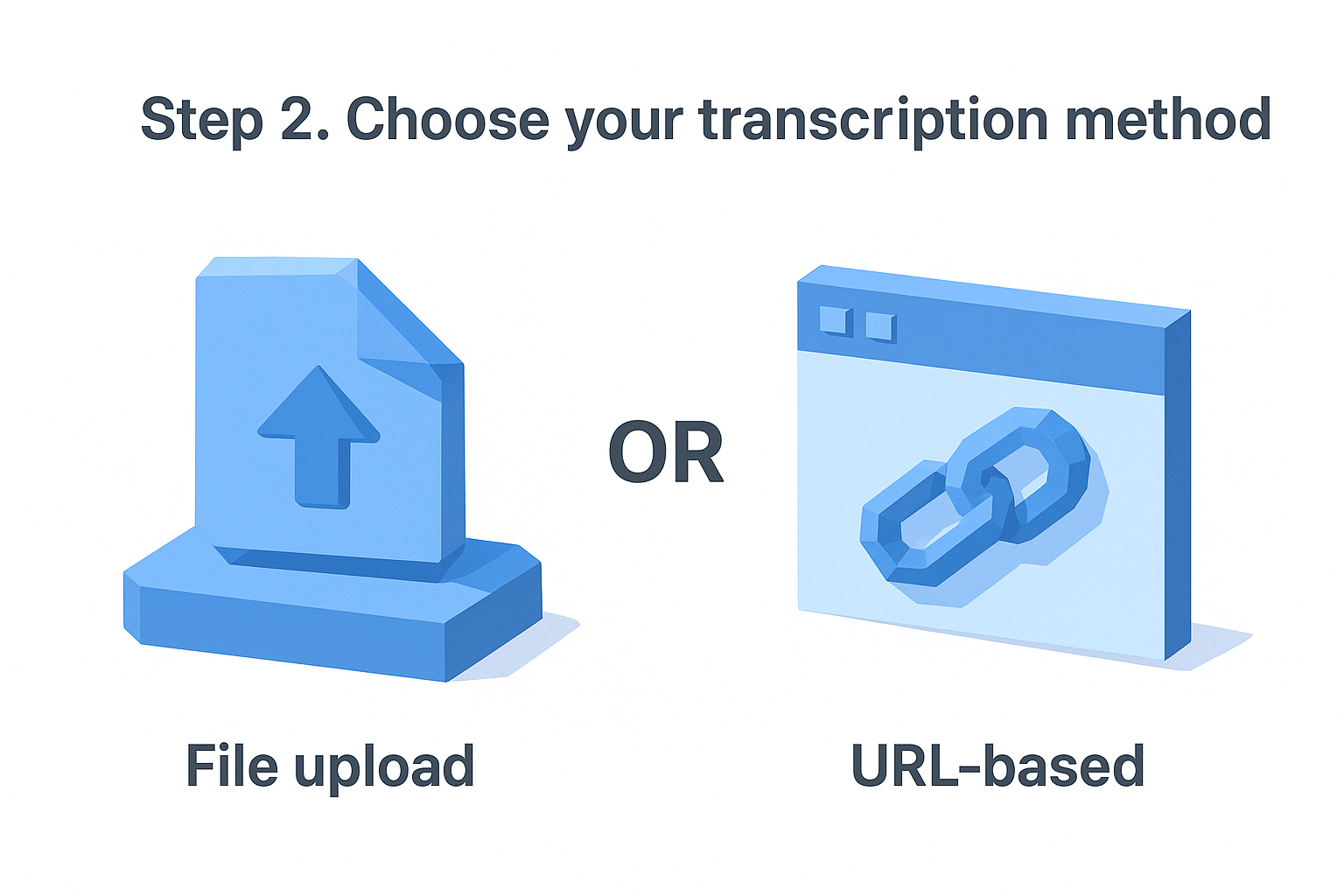
You have two main paths when figuring out how to transcribe a video to text: upload a local file or paste a public URL. Your choice here depends entirely on where your video lives and what you plan to do with the transcript afterward.
File upload tools
File upload tools work best when you have a local recording or a downloaded video. You drag the file into the tool, wait for processing, and download the result. Most tools in this category charge by the minute, so longer videos cost more and batch processing gets expensive fast.
If you're repurposing the transcript for content creation rather than just captions, pick a tool that connects transcription directly to a writing workflow rather than just spitting out a file.
URL-based tools
URL-based tools let you paste a direct link and skip the download step entirely. This method is faster for online content and works well when you need to analyze competitor videos or viral posts without saving files to your machine. AI Flow Chat uses this approach to pull transcripts and feed them straight into content generation workflows.
Supported URL sources typically include:
- YouTube videos
- TikTok posts
- Instagram Reels
- Public Facebook videos
Step 3. Transcribe from a file or a link
Once you've chosen your method, the actual transcription process is straightforward. The steps differ slightly depending on whether you're uploading a local file or pasting a public URL, so follow the path that matches your source.
Transcribing from a file upload
Open your tool and locate the upload option. Drag your file directly into the upload area or click to browse. Once the upload completes, the tool will start processing automatically. Larger files take longer, so expect one to five minutes for a standard 10-minute video.
Label your exported transcript with the video name and date so you can locate it quickly when building content workflows later.
Transcribing from a URL
Paste your public link into the URL field and click the transcribe button. This is the fastest way to learn how to transcribe a video to text from social platforms. AI Flow Chat handles this in one step: paste the link, and the transcript feeds directly into your AI content workflow without any extra export or download step.
Here is a quick example workflow for URL transcription:
- Copy the public video URL from YouTube, TikTok, or Instagram
- Paste it into the transcription tool's URL input field
- Click "Transcribe" or "Analyze"
- Review the output for any accuracy errors
- Send the transcript directly to your writing or repurposing workflow
Step 4. Edit, timestamp, and export clean text
Raw AI transcripts are good but rarely perfect. Speaker overlaps, filler words, and punctuation gaps show up in almost every output, so a quick edit pass before you export saves you from errors in your final content.
Clean up the transcript
Read through the full text once and fix obvious errors and run-on sentences first. Then remove filler words like "um," "uh," and repeated phrases that make the text harder to read. This step is especially important when you plan to use the transcript as a blog post or for any public-facing content repurposing workflow.
A clean transcript is the foundation of every downstream content asset you create from it.
Common edits to make in one pass:
- Remove filler words (um, uh, like, you know)
- Fix speaker attribution errors
- Correct proper nouns and brand names
- Break long run-on sentences into shorter ones
Add timestamps and export
If your goal when learning how to transcribe a video to text includes creating captions or chapter markers, add timestamps manually or use your tool's built-in export option before you download.
Common export formats and their uses:
- TXT: plain text for blog posts or AI writing workflows
- SRT: timestamped captions for YouTube or video uploads
- DOCX: formatted text for editing in word processors
Quick recap
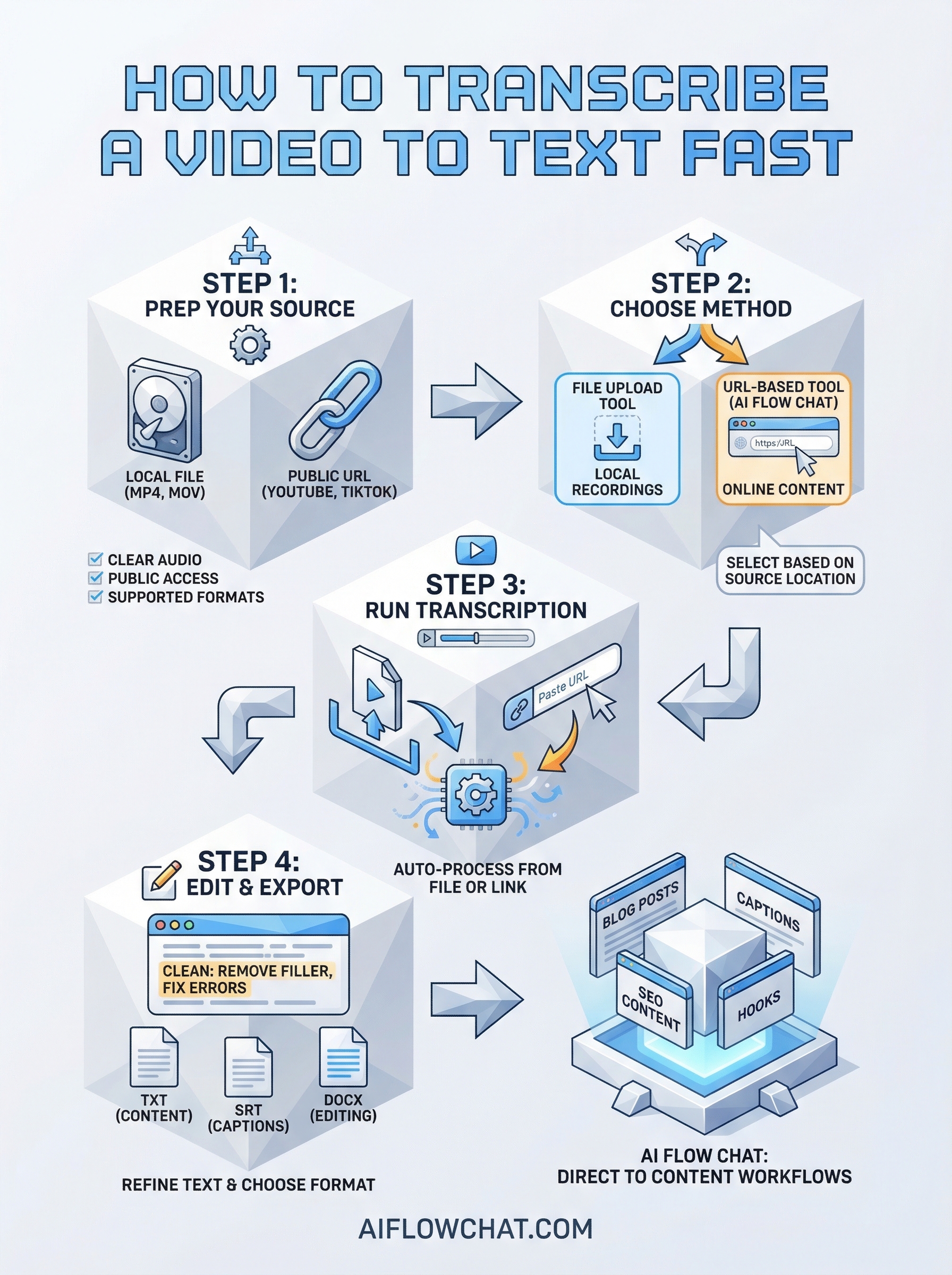
Learning how to transcribe a video to text comes down to four straightforward steps: prepare your source, pick the right method, run the transcription, and clean the output before you export. Each step builds on the last, so skipping prep or skipping the edit pass costs you time and accuracy on the back end.
Your choice of tool matters as much as your process. File upload tools work well for local recordings, but URL-based tools save you the most time when you're pulling transcripts from YouTube, TikTok, or Instagram Reels. The right platform connects your transcript directly to a writing or repurposing workflow instead of leaving you with a file you still have to figure out what to do with.
If you want to skip the back-and-forth and turn video transcripts into ready-to-publish content in one place, try AI Flow Chat and see how fast the full workflow moves.
Continue Reading
Discover more insights and updates from our articles
Choose an AI model for scripts, marketing copy, coding, research, long documents, and quick everyday work using a practical quality, speed, and credit-cost framework.
Compare eight current Poppy AI alternatives for visual research, creator workflows, general AI work, grounded synthesis, automation, and reusable delivery.
A practical method for turning a scattered content process into a clear AI-assisted flowchart with source context, review checks, and a reusable output.