YouTube Transcript Feature: How To View It On Any Device
At AI Flow Chat
Contents
0%Every YouTube video holds a text version of its spoken content, and knowing how to access the YouTube transcript feature can save you serious time. Whether you're researching a topic, pulling quotes, repurposing content, or feeding video context into an AI tool, transcripts turn hours of watching into minutes of reading.
The feature works across desktop and mobile, but it's not always obvious where to find it, and sometimes it doesn't show up at all. That's where most people get stuck. This guide walks you through exactly how to view transcripts on any device, step by step, plus what to do when the option is missing and which alternative tools can help.
At AI Flow Chat, we built our platform around the idea that existing content, especially viral videos, is your best starting point for creating something new. Users paste YouTube links directly into our visual AI workspace to extract transcripts, analyze hooks, and generate fresh content from what's already proven to work. So we spend a lot of time inside YouTube's transcript system, and we've put together everything we've learned in this guide.
What the YouTube transcript feature is
The YouTube transcript feature is a built-in tool that converts the spoken audio of a video into a time-stamped block of text you can read, search, and copy directly inside the YouTube interface. No third-party software required. YouTube generates this text automatically from the video's audio track and makes it accessible through the video page itself, without any extra steps from the viewer.
How YouTube generates transcripts
YouTube creates transcripts through two different methods. The first is auto-generated captions, which YouTube's speech recognition system produces by processing the audio. The second is manually uploaded captions, where the channel owner provides their own subtitle file. Manual captions are almost always more accurate because a human reviewed the text before it went live. Auto-generated captions handle clear, standard English well but can produce errors with heavy accents, technical vocabulary, or rapid speech.
If a channel uploads captions manually, you will get a cleaner transcript than what YouTube's speech recognition produces on its own.
What a transcript actually contains
Each line in the transcript ties a spoken phrase to a specific timestamp. When you click any line inside the transcript panel, YouTube jumps the video to that exact moment. This makes the feature useful beyond simple reading. You can scan the structure of a long video in seconds, find a specific quote without scrubbing through the timeline, or copy the full text into another tool for editing and repurposing.
One important limitation: the transcript captures spoken dialogue only. It does not include descriptions of background music, sound effects, or on-screen text that nobody reads aloud. Visual elements like slides, charts, or lower-third text overlays will not appear in the transcript output. If that information matters for your use case, you will need to supplement the transcript with screenshots or notes taken while watching the video.
View transcripts on desktop
Accessing the youtube transcript feature on a desktop browser is straightforward once you know where to look. The option lives inside a small video menu rather than appearing as a visible button on the page, which is why most people miss it entirely. You do not need a Google account to read a transcript.
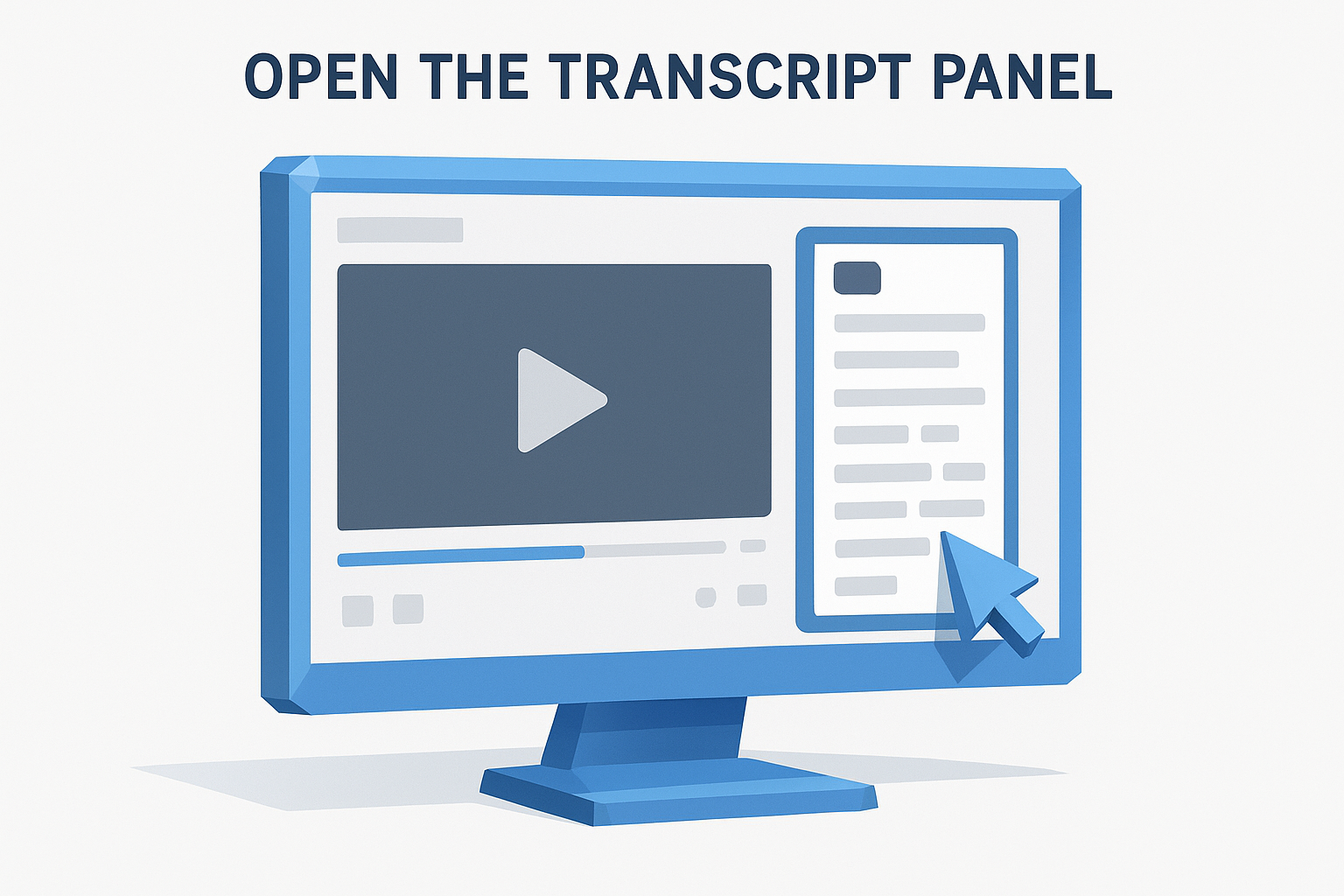
Open the transcript panel
Follow these steps to pull up the transcript on any video. The whole process takes under thirty seconds and works in any desktop browser, including Chrome, Firefox, Safari, and Edge.
- Go to the video page on youtube.com.
- Look below the video title for the three-dot menu icon ("...") that sits to the right of the Save button.
- Click that icon and select "Show transcript" from the dropdown menu.
- The transcript panel opens on the right side of your screen with time-stamped text.
If "Show transcript" does not appear in the menu, the video has no captions enabled or the channel owner has turned off caption access.
Navigate and copy the transcript
Once the panel is open, you can turn timestamps off by clicking the three-dot icon at the top of the transcript panel, which makes copying the full text much cleaner. To jump to a specific moment, click any line and YouTube seeks to that exact point in the video immediately.
Your browser's built-in find function also works here. Press Ctrl+F on Windows or Cmd+F on Mac to search for a specific word or phrase inside the open transcript panel without scrolling manually through the entire text.
View transcripts on iPhone and Android
The YouTube transcript feature works on mobile, but the steps differ from desktop. The YouTube app on both iPhone and Android buries the option inside the video description panel, so it takes an extra tap or two to reach it compared to what you do on a browser.
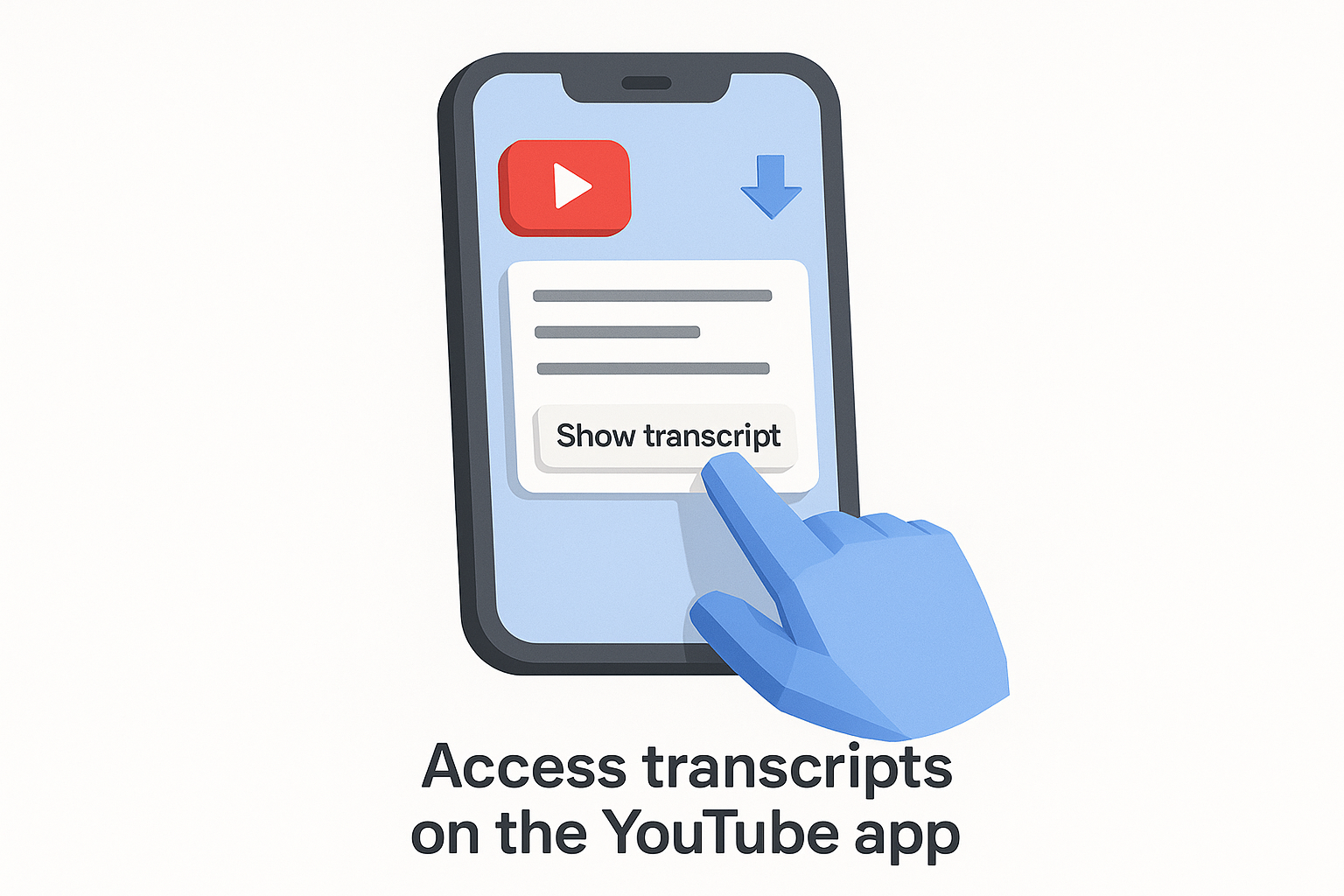
Access transcripts on the YouTube app
The process is the same whether you use an iOS or Android device. You need the YouTube app installed and updated to a recent version to see the transcript option.
- Open the YouTube app and navigate to the video.
- Tap the video title or the down arrow below it to expand the description panel.
- Scroll down inside the description until you see "Show transcript."
- Tap it to open the transcript as a scrollable list of time-stamped lines.
- Tap any line to jump the video to that moment.
If you scroll through the full description and "Show transcript" never appears, the video either has no captions or the channel owner has disabled the option.
What's different on mobile
Copying text from the mobile transcript panel is less smooth than on desktop. You can long-press any line to select and copy individual phrases, but there is no quick way to grab the entire transcript at once inside the app. If you need the full text in one block, open the video in your mobile browser instead of the app and follow the same desktop steps outlined in the previous section.
Copy, search, and edit transcripts
The youtube transcript feature gives you raw text you can copy and use anywhere, but it takes a few extra steps to pull the full content cleanly. With timestamps enabled, the copied text looks cluttered with time codes. Turning them off first gives you clean, readable text that pastes well into a document, AI tool, or note-taking app.
Disable timestamps before copying to avoid cleaning up a wall of time codes in your destination document.
Copy the full transcript text
Once the transcript panel is open on desktop, click the three-dot icon at the top of the panel and toggle off "Toggle timestamps." Then click anywhere inside the panel, press Ctrl+A (Windows) or Cmd+A (Mac) to select all the text, and paste it wherever you need it. The full spoken content of the video is now in your clipboard as plain, unformatted text ready to use.
Search and edit the text
Searching inside the open transcript panel is the fastest way to locate a specific moment without reading every line. Press Ctrl+F or Cmd+F on your browser to open the find bar, then type your keyword. Your browser highlights every match inside the panel immediately.
Editing the transcript directly on YouTube is not possible. YouTube does not let viewers modify captions through the transcript panel. If you need a corrected or reformatted version, paste the copied text into a tool like Google Docs and edit it there.
Fix the transcript option when it's missing
The youtube transcript feature only appears when a video has captions attached to it. When you open the three-dot menu and "Show transcript" is absent, one of a few specific causes is responsible. Knowing which one applies to your situation tells you exactly what to do next.
Reasons the transcript won't appear
The most common reason is that the video has no captions at all. This happens with older videos uploaded before YouTube rolled out auto-generated captions, videos in languages YouTube's speech recognition does not support well, or videos where the audio quality is too poor for the system to process. A second reason is that the channel owner manually disabled captions in their video settings, which removes the transcript option even when captions were originally generated.
If a video is brand new, wait 24 hours before concluding the transcript is missing permanently since YouTube's auto-captioning system sometimes takes time to process the audio.
What you can do to get the transcript
Your options depend on the cause. If the channel disabled captions, you cannot access the transcript through YouTube directly. Instead, paste the video URL into a third-party transcription tool that processes the audio file independently. If the video is in a supported language but simply has no captions yet, opening the video in a different browser occasionally triggers a refresh that loads a recently processed transcript. On mobile, switching from the app to your mobile browser and checking the description panel also resolves display glitches that hide the option incorrectly.
Next steps
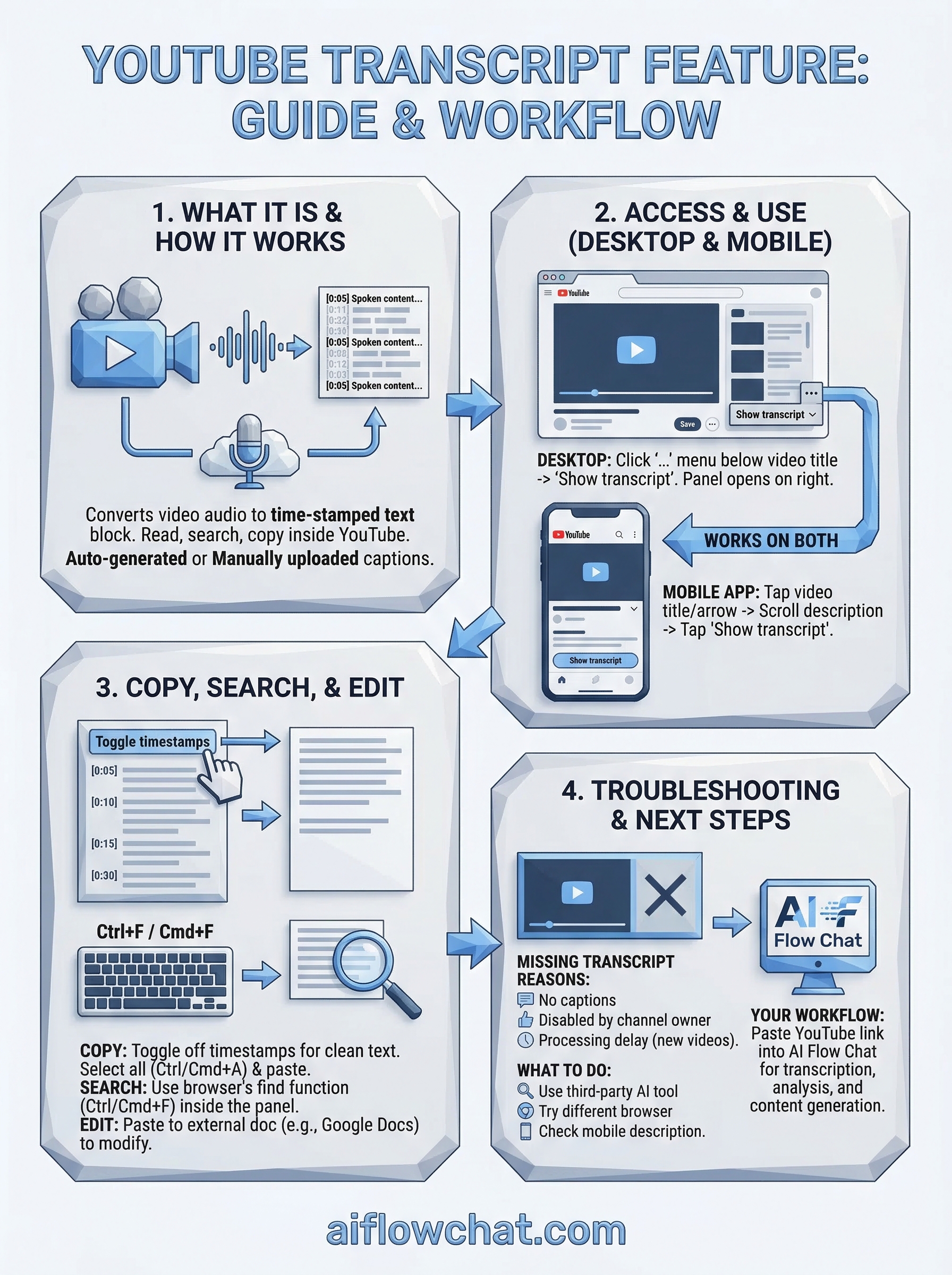
You now know how to access the youtube transcript feature on every device, copy the full text cleanly, and troubleshoot the situations where it refuses to show up. The transcript is the fastest way to turn a long video into usable, searchable text without sitting through the entire runtime.
Once you have that text, the real question is what you do with it. Pasting a raw transcript into a basic chat tool gets you generic output. What actually moves the needle is feeding the transcript into a workflow that analyzes the hooks, extracts the structure, and generates new content in your own voice, built around what already proved it could hold an audience's attention.
That's exactly what AI Flow Chat is built for. You paste a YouTube link directly into the visual workspace, and the platform handles the transcription, analysis, and content generation in one place, no copy-pasting between five different tools required.
Continue Reading
Discover more insights and updates from our articles
Choose an AI model for scripts, marketing copy, coding, research, long documents, and quick everyday work using a practical quality, speed, and credit-cost framework.
Compare eight current Poppy AI alternatives for visual research, creator workflows, general AI work, grounded synthesis, automation, and reusable delivery.
A practical method for turning a scattered content process into a clear AI-assisted flowchart with source context, review checks, and a reusable output.