How To Transcribe A YouTube Video: 7 Fast Methods In 2026
At AI Flow Chat
Contents
0%You found a YouTube video that nails the exact tone, structure, or talking points you want to reference for your own content. Now you need the words on screen turned into text you can actually work with. Knowing how to transcribe a YouTube video quickly is one of those skills that saves hours every week, especially if you're a creator or marketer who pulls inspiration from video content regularly.
The good news: you have more options in 2026 than ever before, from YouTube's own built-in captions to dedicated AI transcription tools. Some methods are free, some are faster, and some let you do more with the transcript once you have it. For example, at AI Flow Chat, we built our platform around the idea that you should be able to paste a YouTube link and immediately use that transcript as context for AI-generated content, whether that's a blog post, a social caption, or an ad script based on a competitor's video.
This guide covers seven practical methods to get a YouTube transcript, including native options, third-party tools, and workflow-based approaches. Each one fits a different use case, so you can pick the method that matches how you actually work.
What you need before you start
Before you figure out how to transcribe a YouTube video, a few quick checks will save you from hitting dead ends halfway through the process. Not every method works on every video, and knowing your constraints upfront means you pick the right approach on the first try rather than wasting time switching tools.
Check if the video has captions
YouTube automatically generates captions for most English-language videos, but not every video has them enabled or available. A creator may have turned off captions entirely, the video might be too new for YouTube's system to have finished processing, or the audio quality might have been too poor to generate anything usable.
If a video has no captions at all, you'll need an AI transcription tool or a platform that pulls audio directly from the link, rather than relying on YouTube's built-in caption data.
To check, open the video and look for the CC button in the player controls at the bottom. If it's grayed out or missing, native captions are unavailable. Also note that age-restricted videos, private videos, and some region-locked videos will block most third-party tools from accessing them.
Run through this quick checklist before you pick a method:
- Is the CC button visible and active in the video player?
- Is the video public or unlisted (not private or age-restricted)?
- Is the video primarily in a language you can work with?
Know what you'll do with the transcript
Your end goal shapes which method you choose. If you only need the raw text to pull a quick quote, copying from YouTube's built-in transcript panel takes under a minute. If you want to repurpose the content into a blog post, ad script, or social caption, you need a tool that connects the transcription step directly to a writing or content workflow.
Before you start, write one sentence: "I need this transcript to ___." That single sentence eliminates several methods immediately and points you toward the right one.
Have the right tools ready
Depending on your chosen method, you may need a Google account, a Chromium-based browser, or an active subscription with a third-party platform. Free methods typically require nothing beyond a standard browser. Paid AI tools require a valid account and available credits, so confirm your access before you begin working through a longer video. Checking this first prevents you from losing progress midway through a 45-minute recording.
Methods 1–3: Use YouTube's transcript tools
YouTube gives you three built-in ways to access a video's text without any third-party software. These are the fastest starting point when you need to transcribe a YouTube video quickly and the video already has captions available.
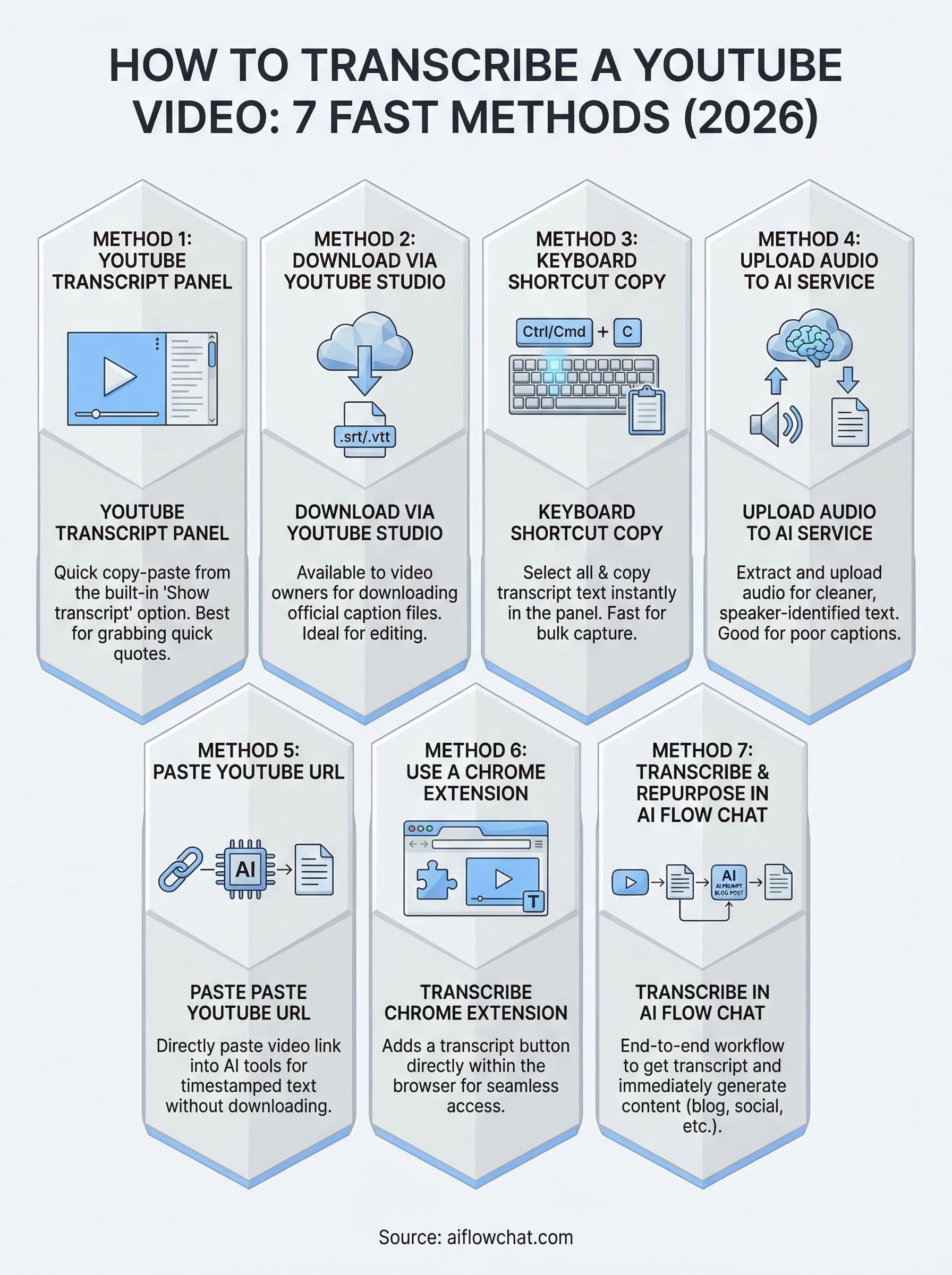
Method 1: Open the transcript panel
This is the quickest option for most videos. Open the video, click the three-dot menu below the title, and select "Show transcript." A panel opens on the right with timestamped lines of text. Select all the text in that panel, copy it, and paste it into your document. The whole process takes under 30 seconds.
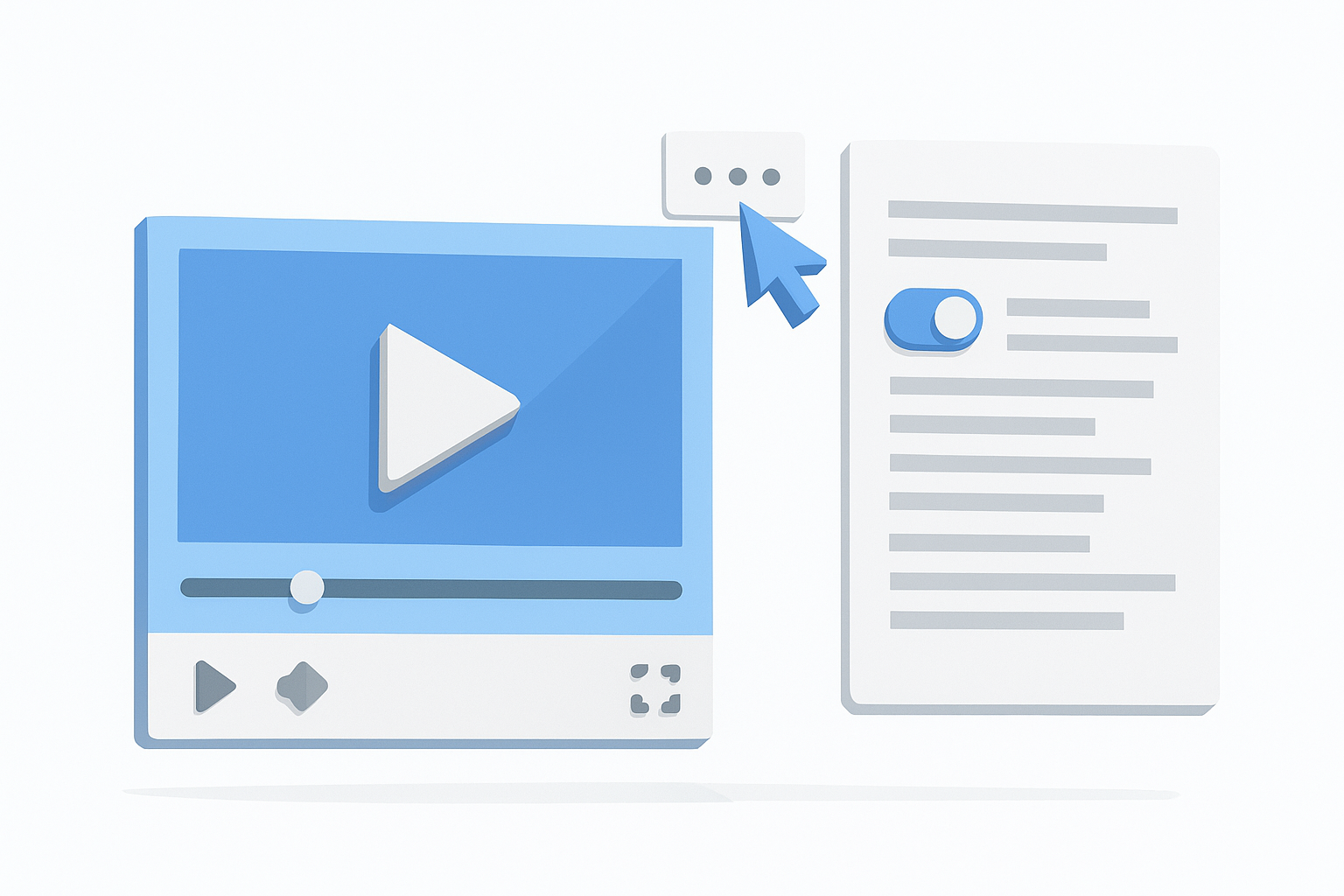
Uncheck "Toggle timestamps" at the top of the panel before copying if you want clean text without time codes in your document.
Method 2: Download captions through YouTube Studio
If you own the video, YouTube Studio lets you download the caption file directly. This is useful when you need formatted subtitle files for editing software or other tools.
- Go to studio.youtube.com
- Open your video and click "Subtitles"
- Select a language, then click the three-dot menu next to it
- Choose "Download" and select .srt or .vtt format
Method 3: Copy faster with a keyboard shortcut
On any video with captions enabled, open the transcript panel and press Ctrl+A then Ctrl+C on Windows or Cmd+A then Cmd+C on Mac to grab everything at once. Paste directly into a Google Doc or Notion page. This approach scales well when you need transcripts from several videos in a single working session without clicking through each one manually.
Methods 4–5: Use AI transcript generators
When YouTube's native tools don't cut it, AI transcription services fill the gap. These tools work on videos without captions, handle multiple languages better than YouTube's auto-captions, and often produce cleaner, more readable output. They're the right call when you need to transcribe a YouTube video that has poor auto-captions or no captions at all.
Method 4: Upload the audio to an AI transcription service
Several AI transcription platforms let you upload an audio or video file and receive a formatted transcript in minutes. The general workflow looks like this:
- Download the YouTube video's audio using a browser-based audio extractor
- Upload the audio file to your chosen transcription service
- Select the language and any speaker labels you need
- Export the finished transcript as plain text or a Word document
Most AI transcription services offer a free tier with a monthly audio limit, so confirm the cap before you start processing a long video.
These tools are especially useful when you need speaker identification or punctuation-corrected text that raw YouTube captions don't provide. The output is typically cleaner than anything YouTube generates automatically, which saves you editing time downstream.
Method 5: Paste the YouTube URL directly
Some AI platforms accept a direct YouTube link and pull the transcript without any download step. You paste the URL, the tool fetches and processes the audio, and returns timestamped text you can copy or export.
This approach cuts out the intermediate audio file entirely, which makes it noticeably faster when you're working through multiple videos at once. Look for tools that also let you edit the transcript inline before exporting, so you can fix proper nouns or brand names without switching to a separate document.
Method 6: Use a Chrome extension
Chrome extensions sit directly inside your browser and add a transcript button to YouTube's interface, so you never leave the page to get the text you need. They're a solid middle-ground option when you want faster access than YouTube's built-in panel but don't want to sign up for a separate AI service. If you're regularly figuring out how to transcribe a YouTube video without switching tabs or tools, a browser extension cuts that friction down significantly.
How Chrome extensions work for transcription
Most YouTube transcription extensions inject a small button or sidebar directly into the YouTube video page as soon as you install them. When you click the button, the extension either pulls the existing caption data from YouTube's servers or processes the audio client-side and returns a formatted block of text. Some extensions also let you copy the transcript with one click, skip timestamps automatically, or export the text straight to a Google Doc.
Choose an extension that clearly states whether it uses YouTube's caption data or processes audio independently, since that distinction determines how well it handles videos with no auto-captions.
Before installing, check the permissions the extension requests. A legitimate transcription tool only needs access to YouTube pages. Any extension requesting access to all sites or your browsing history deserves a second look before you approve it.
Steps to get a transcript using a Chrome extension
Follow these steps to get up and running quickly:
- Open the Chrome Web Store and search for a YouTube transcript extension
- Click "Add to Chrome" and confirm the permissions prompt
- Navigate to the YouTube video you want to transcribe
- Click the extension button that now appears on the video page
- Copy the transcript text or use the export option if available
Method 7: Transcribe and repurpose in AI Flow Chat
The previous six methods give you text. AI Flow Chat goes one step further: it lets you paste a YouTube link, pull the transcript automatically, and feed that transcript directly into an AI workflow on the same visual canvas. If you want to figure out how to transcribe a YouTube video and immediately turn it into a blog post, ad script, or social caption, this method handles both steps without switching tools or copying text between windows.
The transcript stays tethered to your AI outputs on the canvas, so you can always trace which source material produced which result.
Steps to transcribe and repurpose a video in AI Flow Chat
Each step below connects directly to the next, so by the time you finish, you have a finished content piece rather than just a block of raw text. Start with a new canvas in AI Flow Chat and follow this sequence:
- Add a YouTube node to the canvas and paste your video URL
- Let the platform pull and display the transcript automatically in the node
- Connect the transcript node to a prompt node with your target output, for example: "Turn this transcript into a 300-word LinkedIn post in a direct, conversational tone"
- Select your preferred model, OpenAI, Claude, or Gemini, and run the workflow
- Review the output and edit the prompt node to refine the result
- Save the flowchart as a reusable template for future videos
Once you save the workflow, repurposing the next video takes seconds. You paste a new URL, swap in the link, and run the same chain without rebuilding anything from scratch.
Next steps
You now have seven ways to handle how to transcribe a YouTube video, from YouTube's built-in transcript panel to full repurposing workflows. The right method depends on what you plan to do with the text. If you need a quick copy-paste job, Method 1 gets you there in under 30 seconds. If you want to turn a competitor's video into a blog post or ad script without rebuilding your workflow every time, Method 7 gives you a repeatable system that scales.
Pick one method and run it on a video you already have open. Don't overthink the starting point. Once you see how fast transcription can be, the next logical step is connecting that text directly to your content production process. Try AI Flow Chat free and build your first video-to-content workflow today.
Continue Reading
Discover more insights and updates from our articles
Choose an AI model for scripts, marketing copy, coding, research, long documents, and quick everyday work using a practical quality, speed, and credit-cost framework.
Compare eight current Poppy AI alternatives for visual research, creator workflows, general AI work, grounded synthesis, automation, and reusable delivery.
A practical method for turning a scattered content process into a clear AI-assisted flowchart with source context, review checks, and a reusable output.