Otter AI Video Transcription: How To Transcribe Any Video
At AI Flow Chat
Contents
0%Otter.ai is one of the most popular tools for turning spoken words into text, and Otter AI video transcription is something thousands of creators and marketers rely on daily. Whether you're pulling quotes from a recorded meeting, repurposing a webinar, or extracting talking points from a YouTube video, having an accurate transcript saves hours of manual work.
But here's the thing, transcription is usually just the first step. Most creators don't need a transcript to sit in a folder. They need it to become something else: a blog post, a social caption, a script for their next video. That's exactly the gap AI Flow Chat fills. Our platform lets you feed video content directly into AI workflows, automatically transcribing and analyzing it so you can turn one piece of content into dozens without copy-pasting between apps.
This guide walks you through how to use Otter.ai to transcribe any video, from local files to live recordings to YouTube links. You'll learn the step-by-step process, what Otter handles well, where it falls short, and how to get more out of your transcripts once you have them.
What you need before you start with Otter.ai
Before you dive into otter ai video transcription, getting a few things in order will save you a lot of frustration. Otter.ai works well, but it has specific limits around file types, file sizes, and plan tiers that catch users off guard. Knowing these upfront means you won't hit a wall halfway through the process.
Your Otter.ai account and plan
You need an active Otter.ai account before anything else. The free plan gives you 300 minutes of transcription per month with a 30-minute cap per conversation, which is enough for short clips but will cut off anything longer. The Pro plan raises the monthly allowance to 1,200 minutes and bumps the per-conversation limit to 90 minutes, which covers most webinars and long-form interviews.
If you plan to transcribe videos longer than 30 minutes, upgrade to at least the Pro plan before you start, otherwise Otter.ai will stop the transcript short without warning.
Creating an account takes under two minutes at otter.ai. If you're working inside a shared team workspace, confirm with your admin that your role allows file imports, since that permission isn't granted to every member by default.
Supported file formats and size limits
Otter.ai accepts a limited set of audio and video formats, so check your file before you try to upload anything. Here's what works:
| Type | Accepted Formats |
|---|---|
| Video | MP4, MOV, AVI, WMV |
| Audio | MP3, WAV, M4A, OGG, FLAC |
The maximum file size for any import is 250MB. If your video is larger than that, compress it first or split it into segments. HandBrake is a free tool that reduces MP4 size without destroying audio quality, and it takes about five minutes to run.
What to prepare before you upload
A little preparation makes editing much faster afterward. If your video features multiple speakers, write their names down before you upload so you can label them quickly once the transcript generates. Otter.ai detects different voices but won't name speakers automatically unless they're already registered in your workspace.
Also, check your connection before uploading large files. A slow or unstable connection can cause uploads to time out mid-transfer, which means you start over. A wired connection or strong Wi-Fi signal cuts that risk down significantly.
Step 1. Pick the right Otter.ai transcription method
Otter.ai gives you two main methods to transcribe video content, and picking the wrong one before you start will cost you time. Your choice comes down to one question: do you already have the video file on your computer, or does the video only exist as a live stream or YouTube link? Each method has a different setup process, and understanding which one fits your situation before you open Otter.ai makes everything faster.
Import a local file
Use this method when you have a video file saved on your computer in one of Otter.ai's accepted formats: MP4, MOV, AVI, or WMV. This is the most reliable path for otter ai video transcription because Otter.ai processes the audio directly from the file, giving you consistent accuracy without depending on your microphone or browser setup. If your file came from a recorded Zoom call, a downloaded webinar, or a screen recording, this is your starting point.
Whenever you have the option to download a video before transcribing it, take it. A local file upload produces cleaner results than any live recording method.
Record live through the browser
This method fits situations where your video only exists as a stream, such as a YouTube video, a webinar playing in your browser, or a live meeting happening in real time. You play the video while Otter.ai listens through your system audio, capturing the transcript as the video plays. This approach works, but it introduces more variables than a direct file upload, including audio routing issues and any background noise picked up on your end.
Step 2. Transcribe a video file by importing it to Otter.ai
Importing a video file is the most reliable path for otter ai video transcription. You give Otter.ai clean, controlled audio to process, which means you get better accuracy compared to any live recording method. Take this route whenever you have the video saved locally on your computer.
Upload your file to Otter.ai
Log into your Otter.ai account and navigate to the home screen. From there, the import process follows a short sequence:
- Click the Import button in the top-right corner of your home screen.
- Select your video file from your computer. Accepted formats include MP4, MOV, AVI, and WMV.
- Confirm the upload and wait for Otter.ai to finish processing.
Keep your browser tab open during the upload. Closing or refreshing it before processing finishes can interrupt the transfer and force you to start over.
Otter.ai shows a progress indicator while it processes your file. Depending on the file size and your connection speed, this typically takes anywhere from a few seconds to a few minutes.
Check the transcript once it generates
Once processing finishes, your transcript appears automatically in a new conversation inside your Otter.ai workspace. Scan through it quickly to spot any sections where accuracy dropped, which usually happens around crosstalk, fast speech, or background noise.
You can edit any word directly by clicking on it, and Otter.ai saves your changes in real time. Fix obvious errors before you do anything else with the text so you're not cleaning up mistakes later.
Step 3. Transcribe YouTube or streaming video with live recording
When a video only exists online, such as a YouTube video or a live webinar playing in your browser, you can still run otter ai video transcription by having Otter.ai listen to your system audio in real time. This method captures the transcript as the video plays, so accuracy depends heavily on your audio routing setup rather than a clean file. A few adjustments before you hit record will make a noticeable difference in the quality you get back.
Set up audio routing on your computer
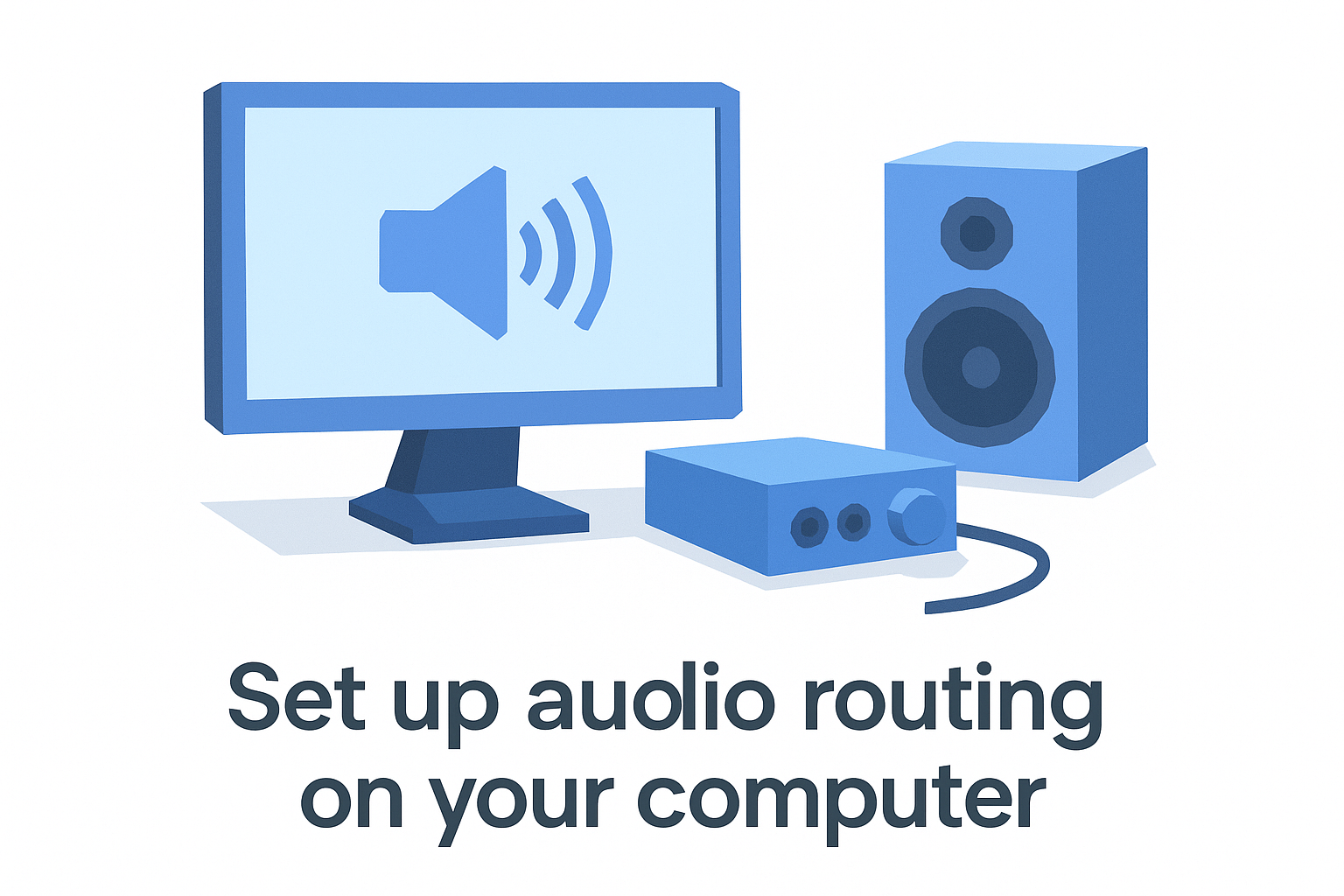
Your computer needs to output internal audio in a way that Otter.ai can actually hear. On Windows, right-click the volume icon in your taskbar, select Sound Settings, and set your output device to your speakers or headphones, then confirm your browser is using the same output. On Mac, go to System Settings > Sound and check that output is routed to your built-in speakers, since Otter.ai's browser extension captures audio from the active tab.
Mute any notifications and close other browser tabs before you start, since extra audio bleeds into the transcript and creates errors you'll have to clean up manually.
Start Otter.ai and play the video
Once your audio is set up correctly, follow these steps in order:
- Open Otter.ai in a separate browser tab and click New Conversation.
- Click the Record button to start a live session.
- Switch to the tab with your video and press play.
- Let the video run completely before stopping the recording in Otter.ai.
- Click Stop once the video finishes, then wait for Otter.ai to finalize the transcript.
Keep both tabs visible so you can monitor the transcript as it generates and catch any gaps in real time.
Step 4. Edit, label speakers, and export the transcript
Once your otter ai video transcription finishes processing, the raw output needs a quick pass before you use it for anything. Otter.ai does a solid job with clear audio, but it still misses words during fast speech, accents, or crosstalk. Clicking directly on any word in the transcript opens an inline editor where you can fix it immediately. Work through the transcript from top to bottom so you don't miss errors buried in the middle.
Label the speakers correctly
Otter.ai detects voice changes automatically and tags each speaker as Speaker 1, Speaker 2, and so on. You need to replace those labels with actual names so the transcript is readable and useful later. Click any speaker label, type the correct name, and select Apply to all to update every instance of that voice in one action.
If you're transcribing a solo video, assign your name to the single speaker label so the export file is immediately ready to share or drop into another workflow.
Export your finished transcript
Otter.ai gives you several export formats depending on what you plan to do with the text next. Here's what each option is best suited for:
| Format | Best For |
|---|---|
| TXT | Pasting into docs or AI tools |
| DOCX | Sharing with editors or clients |
| SRT | Adding subtitles to a video |
| Archiving or formal distribution |
To export, click the three-dot menu in the top-right corner of your conversation, select Export, choose your format, and download the file.
Wrap up and put transcripts to work
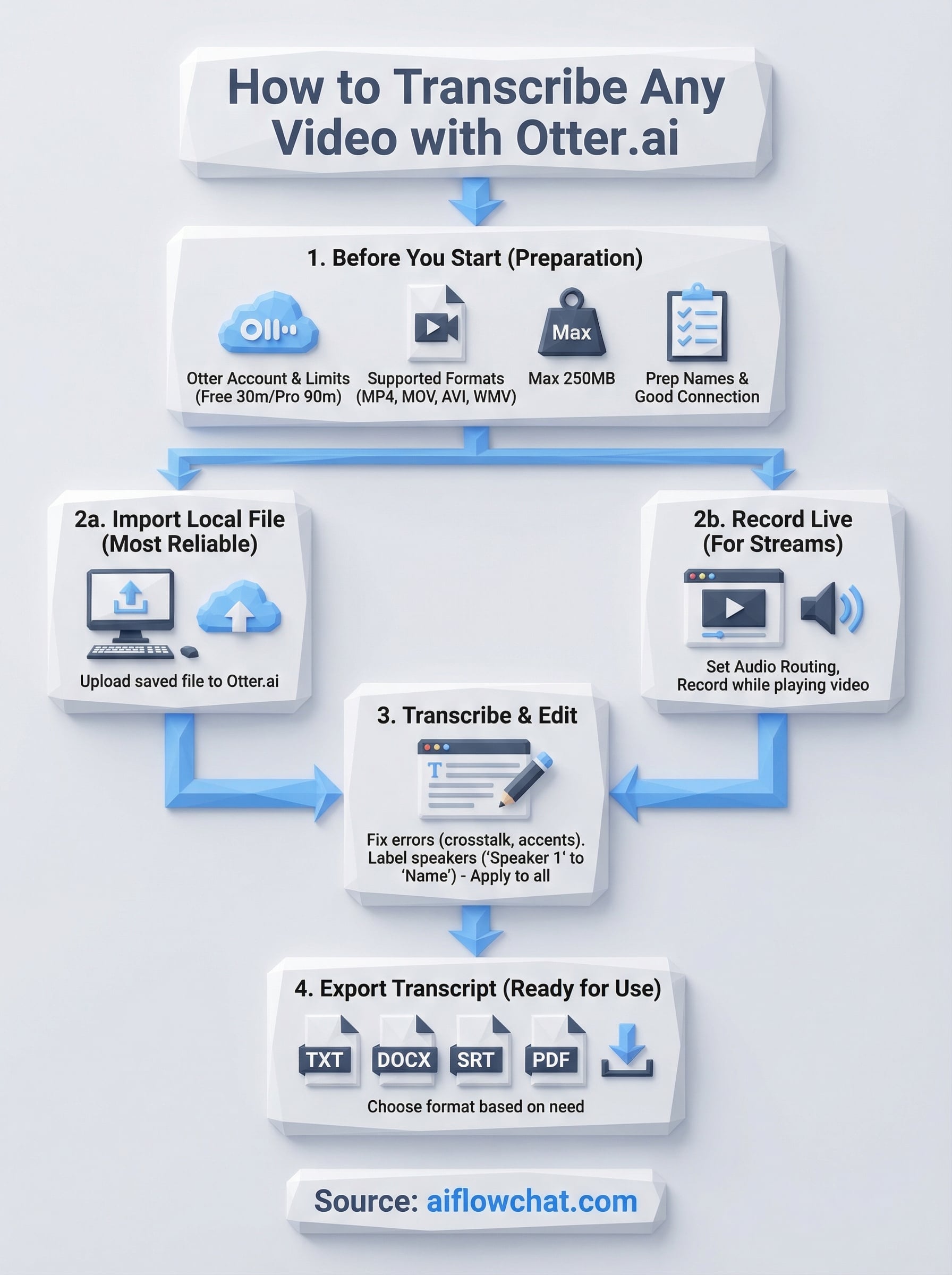
Otter AI video transcription gives you a fast, structured way to turn any video into text, whether you're uploading a local file or recording a live stream. The process breaks down into four clear steps: pick your method, run the transcription, clean up the output, and export in the format your next task requires. Following that sequence every time means you spend less time fixing errors and more time actually using what you have.
A transcript on its own is raw material. The real value comes from what you build with it. If you want to go further and turn those transcripts into social posts, ad scripts, or blog content automatically, AI Flow Chat connects directly to video sources and runs the entire repurposing workflow in one place. Try AI Flow Chat's visual content workflow builder and start converting transcripts into finished content without switching between tools.
Continue Reading
Discover more insights and updates from our articles
Choose an AI model for scripts, marketing copy, coding, research, long documents, and quick everyday work using a practical quality, speed, and credit-cost framework.
Compare eight current Poppy AI alternatives for visual research, creator workflows, general AI work, grounded synthesis, automation, and reusable delivery.
A practical method for turning a scattered content process into a clear AI-assisted flowchart with source context, review checks, and a reusable output.