You've been asking for a way to group chats again for a long time. It's back.
You can now keep related conversations together in one Chat node, with a separate tab for each conversation. Switch between ideas, start a fresh chat without adding another node, and pull a conversation back onto the canvas when it needs its own space.
There are other updates to catch up on, too. Some were already available when I posted the last article, but weren't covered there. This update includes those as well as the latest changes.
Keep related chats together
Imagine working on a campaign with three conversations: one for a newsletter, one for a video script, and one for a carousel. They belong to the same project, but each needs its own back-and-forth.
Group them into one Chat node and keep all three within reach. Their messages stay in separate conversations, so you can return to the newsletter without scrolling through the work on your video script.
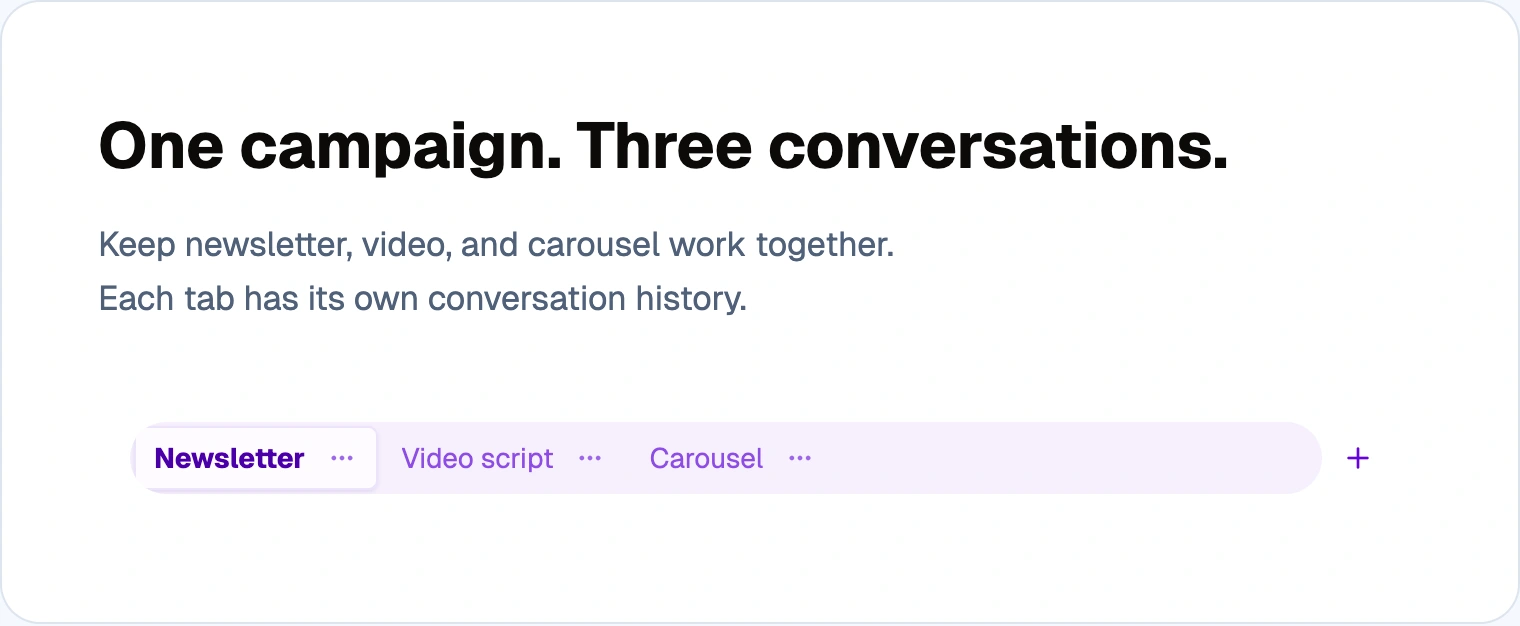
The actual Chat conversation tab strip with separate Newsletter, Video script, and Carousel tabs for a refill campaign, with Newsletter selected
How to group chats
- Open a flow containing the Chat nodes you want to bring together.
- Drag one Chat node onto another.
- Review the confirmation and select Group chats.
- Use the tabs in the remaining node's header to switch conversations. Press + to start a new one.
Choose the destination deliberately: the node you drop onto keeps its model, tools, label, size, and connections. The dragged node is removed, along with its connections. All conversations in the grouped node use that node's current model and tools for future messages. Canceling the confirmation leaves both nodes intact.
Move a conversation when it needs its own space
Drag a conversation tab onto another Chat node to move just that conversation. To give it a node of its own, drag the tab onto blank canvas or use Move to new Chat node in its menu. The extracted node keeps the source model, tools, and dimensions, and starts without connections so you can wire it into a different part of your flow.
Tab menus also let you rename and delete conversations. Switching tabs preserves each conversation's unfinished draft. Deleting the final conversation removes its Chat node and connections too; the confirmation explains this before you proceed. Conversation organization is paused while the affected node is generating or replaying.
Run the conversation you've selected
Grouping works with the automated Chat workflows introduced in the last update.
Select the tab you want, then choose Run This or Run All. Only that conversation's saved user messages are replayed; the other tabs are not run or charged. A blank selected tab produces an empty result, so switch to a populated conversation before running it.
This makes a grouped Chat node useful for keeping several approaches together while choosing which one to use in the next flow run.
Attach reference material directly to your prompt
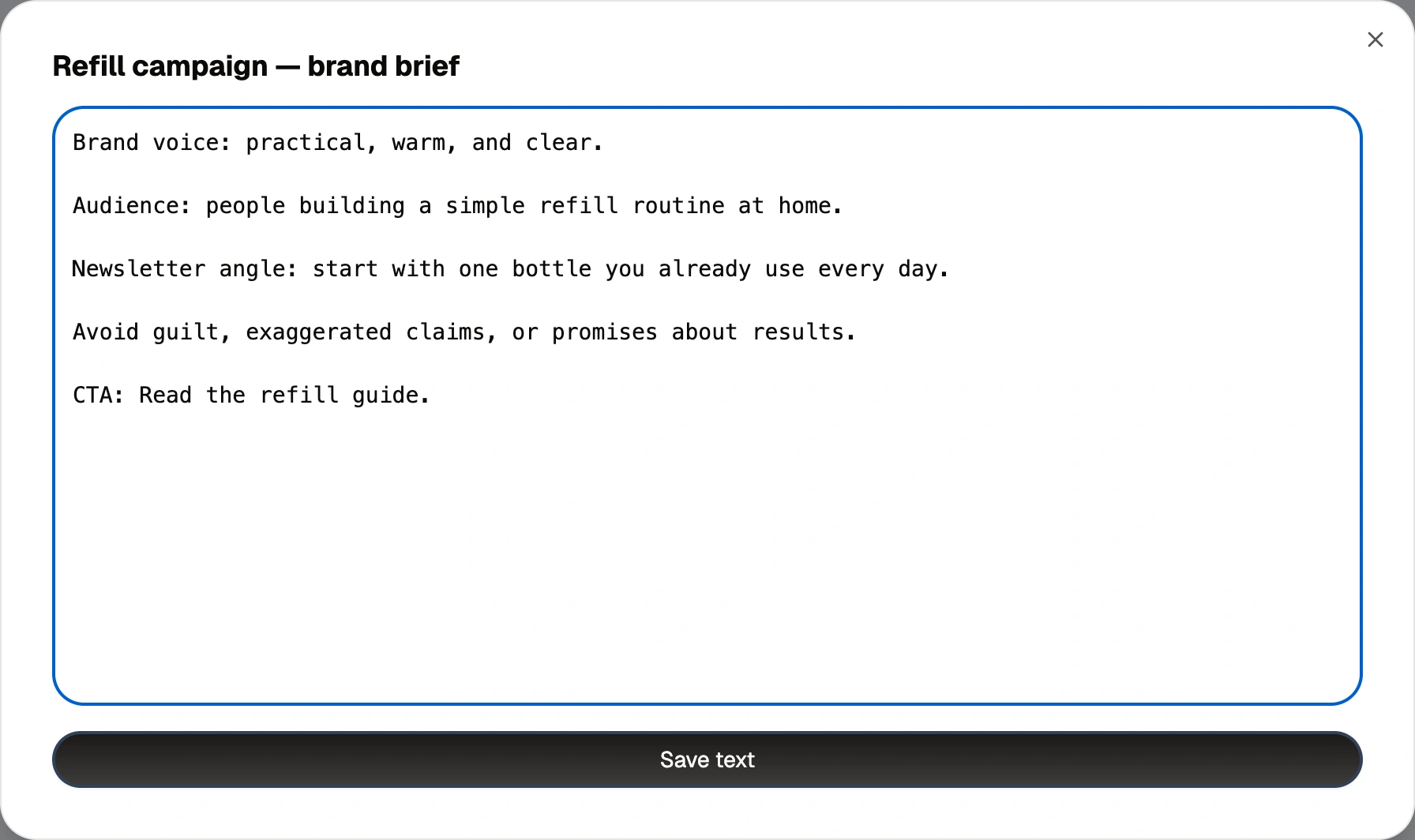
The real attachment preview showing an editable brand brief for a refill campaign and the Save text control
Chat messages and Prompt nodes now accept image and text attachments. Keep a short instruction in the editor and attach the longer reference material alongside it: a brand guide, a customer-research export, or a screenshot you want the AI to work from.
Use Attach, drag files into the input, or paste an image. Pasting 5,000 characters or more into the input turns the text into an attachment, keeping the prompt itself readable. Open a text attachment to review or edit it before sending.
Supported files include PNG, JPEG, WebP, GIF, .txt, .md, .csv, and .json. You can attach up to 20 items; images can be up to 10 MB each. Choose a model that supports images when using image attachments.
More room to read and work
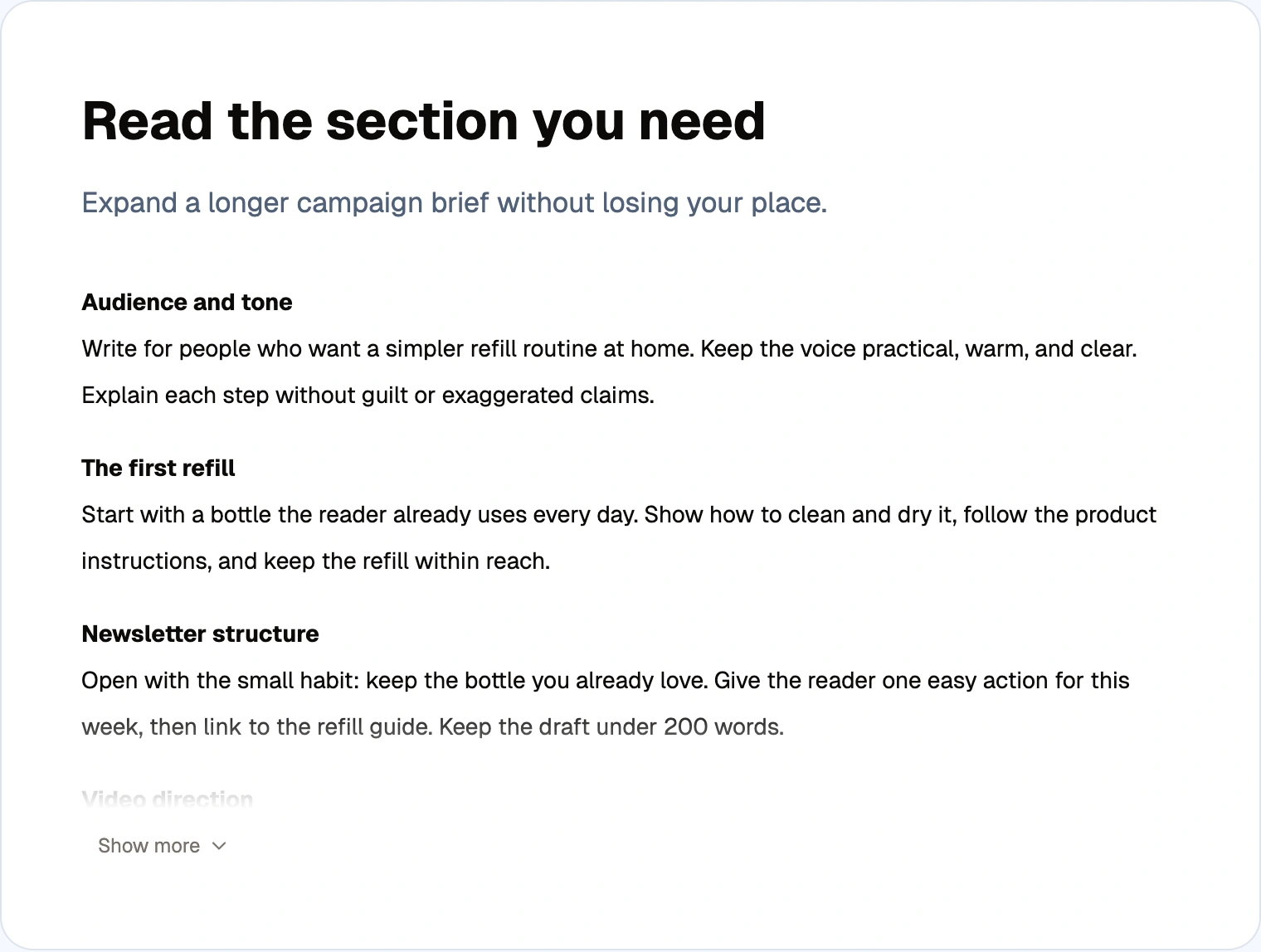
A long campaign brief collapsed by the real Show more control
Long chat messages now have Show more and Show less controls. You can also hide or show the floating reminder of your earlier message while reading a long answer.
Across the canvas, result panels can be expanded when you need the detail and collapsed when you want more room for the rest of your flow. Text and Prompt nodes have Full screen controls for longer writing sessions. Scroll inside a selected node to read its content; scrolling over an unselected node continues navigating the canvas.
See context usage and credit costs more clearly
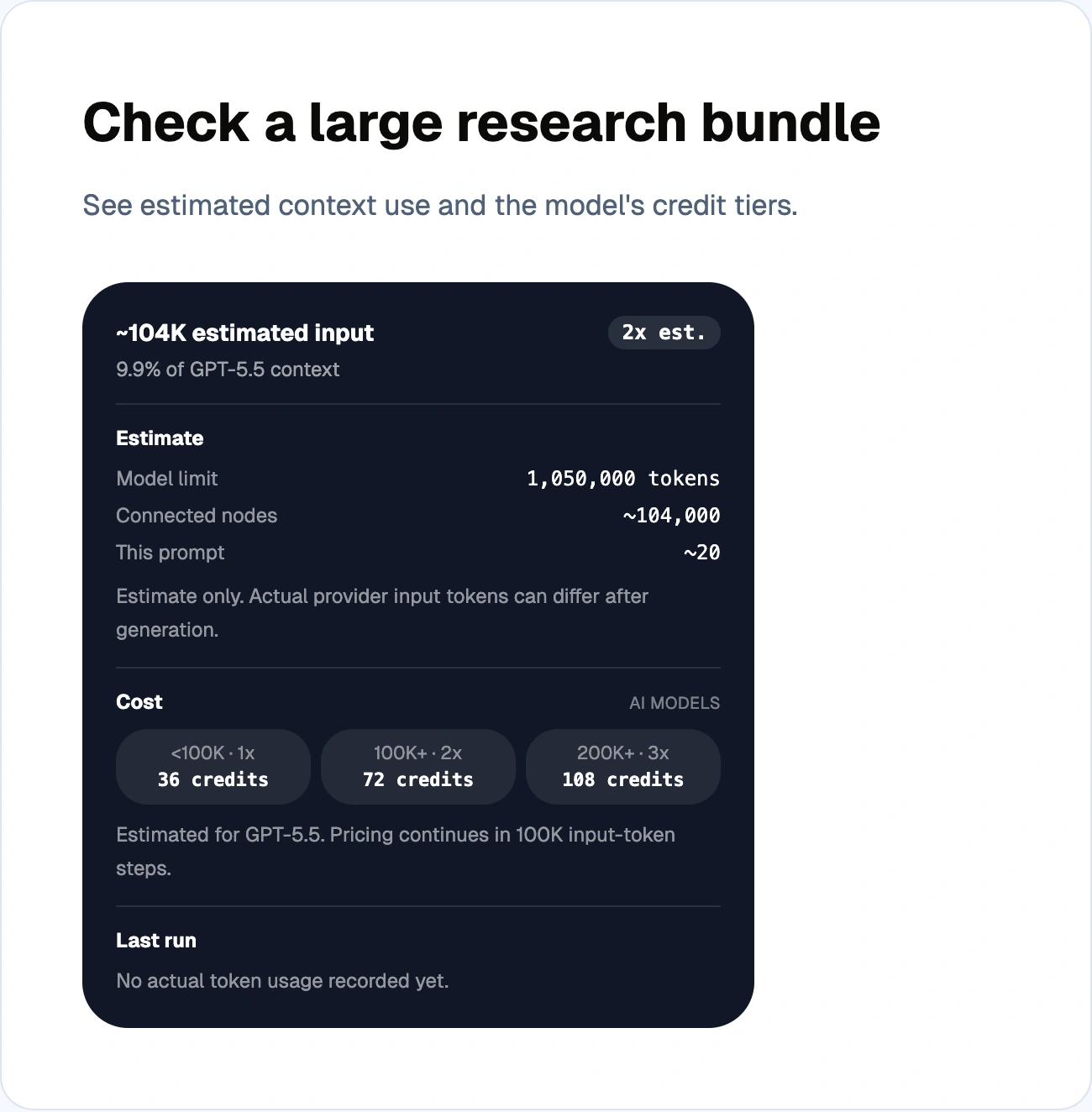
Context usage details for a large research bundle, including estimated tokens and the selected model’s credit tiers
Open Token usage and cost to see an estimate of your input size, how much comes from connected nodes, and how close you are to the selected model's context limit. Where a previous run has recorded usage, the panel also shows its actual input tokens, credit multiplier, and charged credits.
Large inputs can cost more than the model's base price: below 100,000 input tokens the multiplier is 1×, from 100,000 it is 2×, and from 200,000 it is 3×, continuing in 100,000-token steps. The estimate helps you check a large research bundle before running it; actual provider usage can differ.
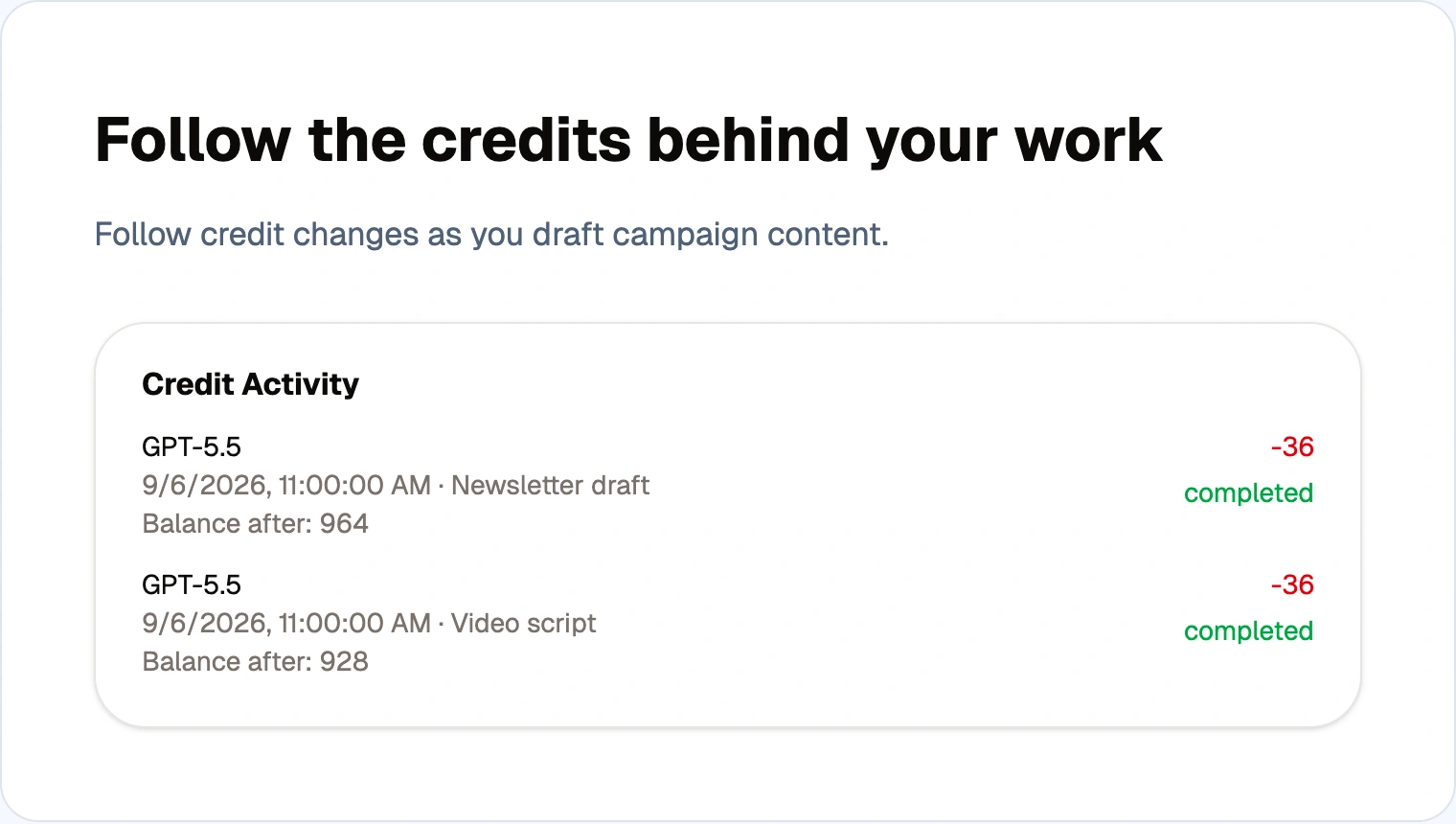
The real Credit Activity component with illustrative newsletter and video-script charges and remaining balances
Your plan details also include Credit Activity, with credit changes, their status, and the balance afterward when recorded. It's easier to see where credits were used or added without piecing together separate runs.
Find product news inside the app
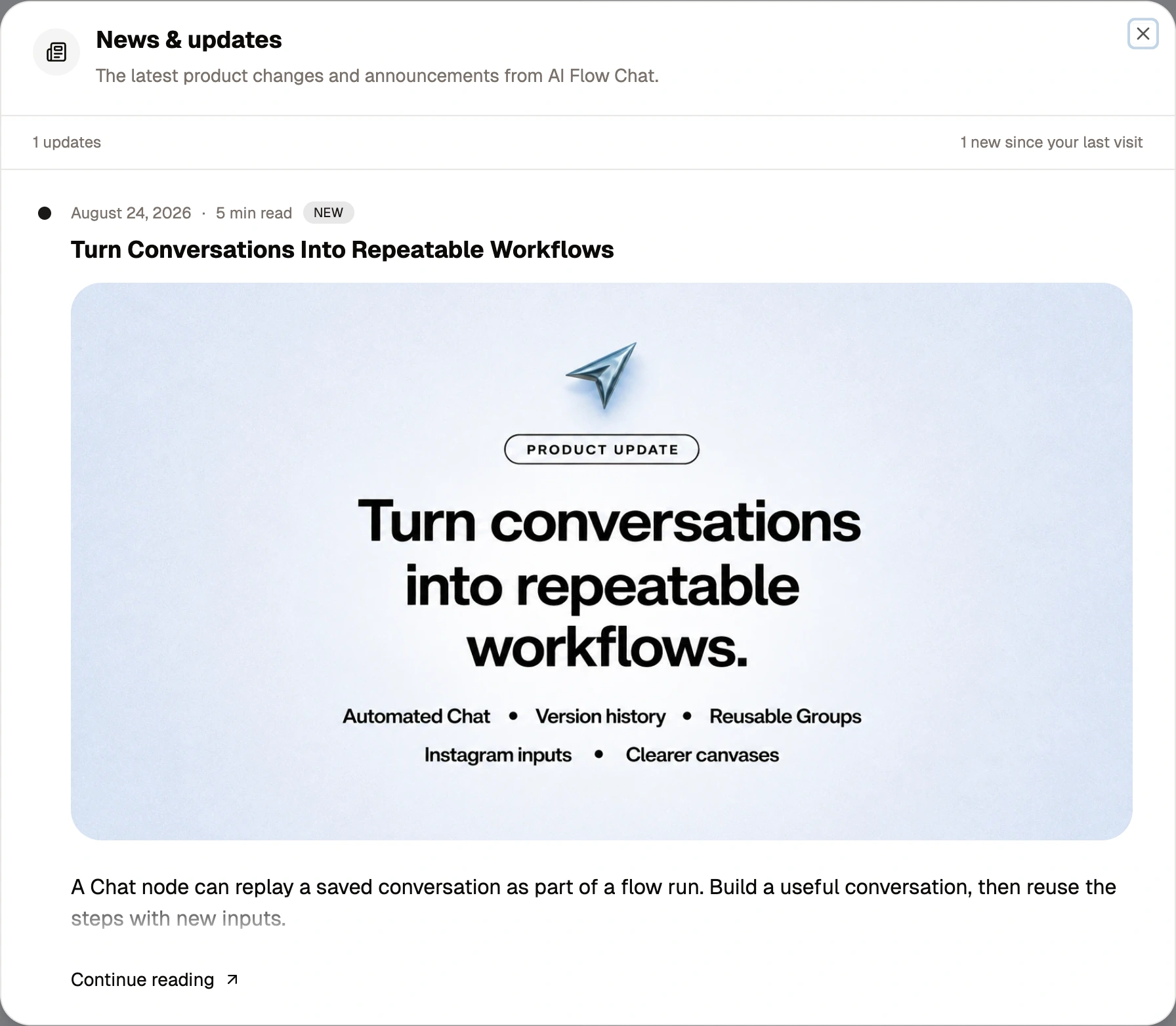
The real News and updates dialog displaying the previous product announcement
Open News & updates in the sidebar to read product announcements without leaving your workspace. It's a place to catch up when you've missed an article or email.
Earlier improvements you may have missed
These weren't included in the last article. Some have been available for a while, so here's the catch-up.
Dictate instead of typing
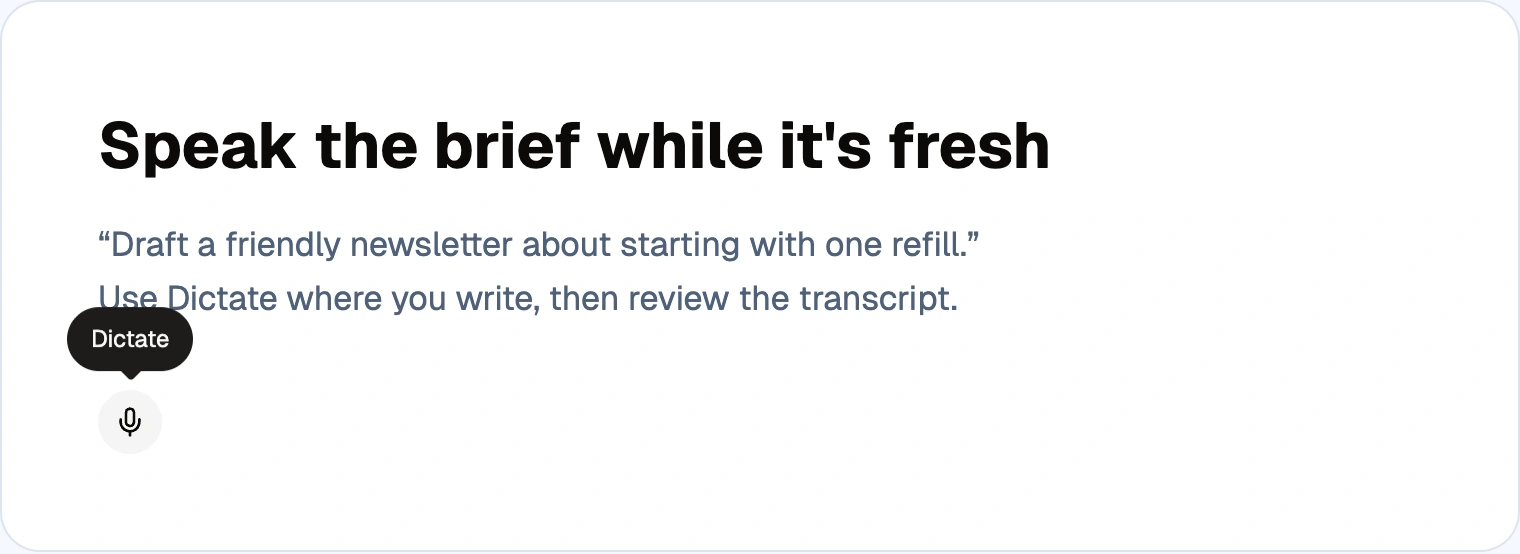
The Dictate microphone control beside a suggested spoken brief for a refill newsletter
Use the microphone button marked Dictate to speak into Chat, Prompt, Text, image-prompt, and sticky-note inputs. Allow microphone access, speak your instructions, then stop recording and review the text. It's useful for getting a rough brief or a half-formed idea onto the canvas while it's still fresh.
Turn audio into material for your flow
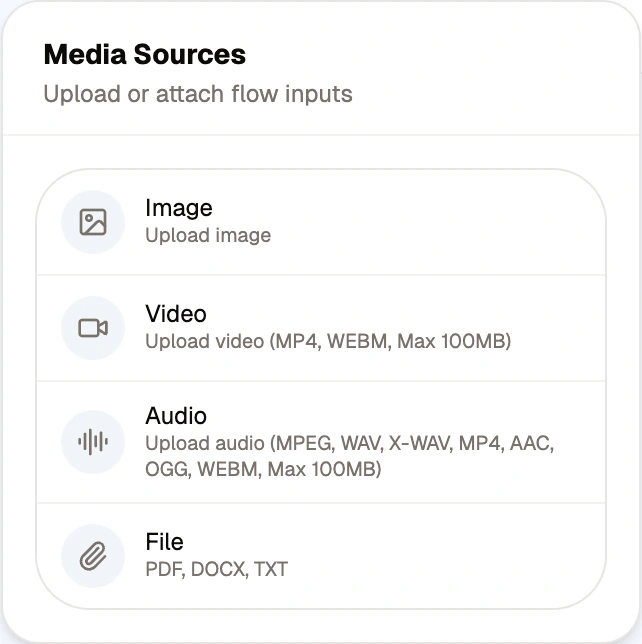
The Media Sources menu showing Audio upload alongside image, video, and file inputs
On paid plans, Media → Audio lets you upload a recording of up to 100 MB. Run the Audio node to transcribe it, then connect the transcript to a Prompt or Chat node to turn an interview, voice note, or recording into content. The audio preview includes a waveform and timestamped transcript segments you can use to return to a part of the recording.
Image, video, audio, and file inputs are also gathered in the Media menu.
Bring Meta ads into your research
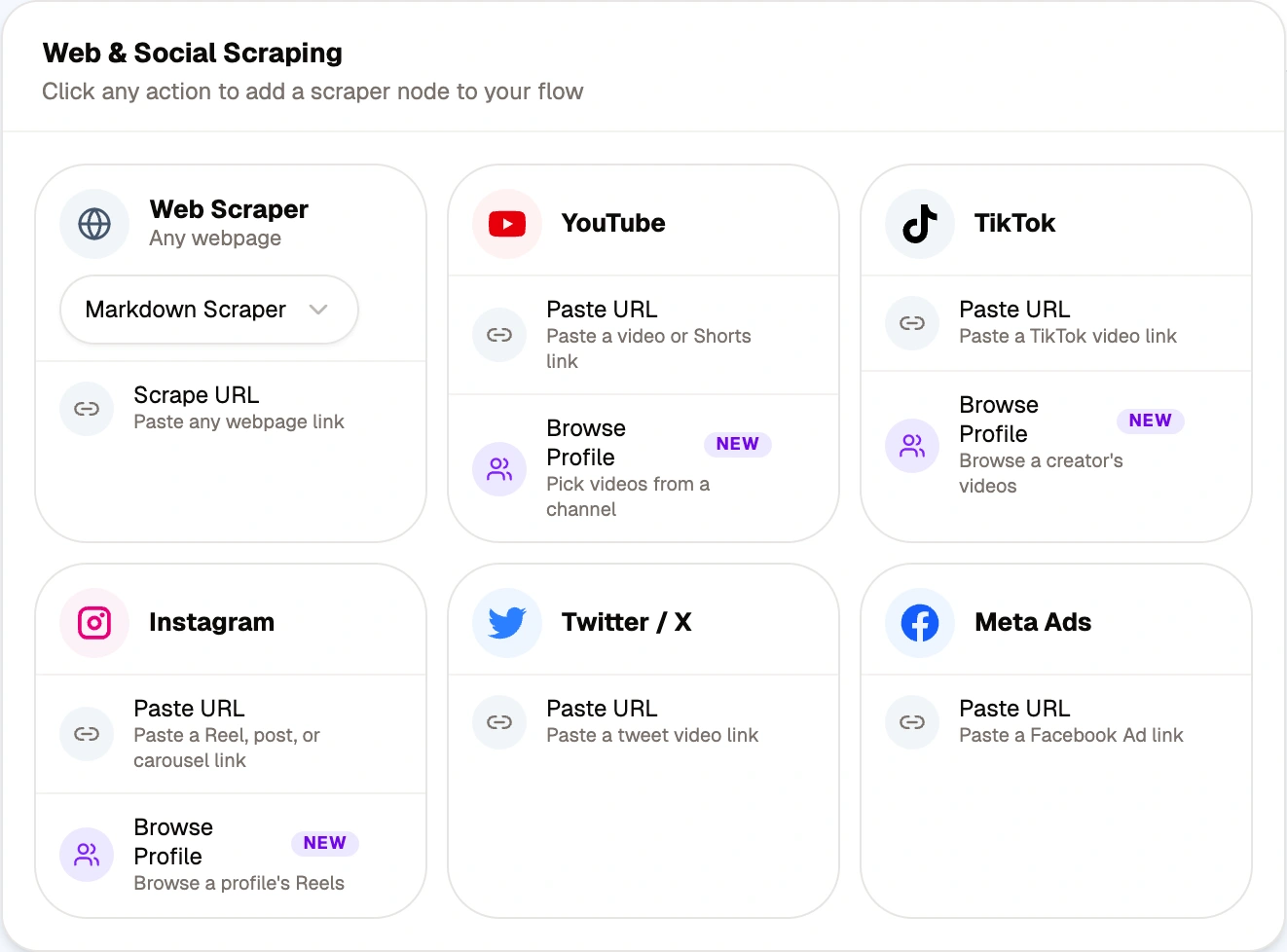
The Web and Social Scraping menu with the Meta Ads Paste URL action
Choose Web → Meta Ads, paste a Meta Ads Library link, and run the node. It retrieves available ad copy and context, plus a transcript when available, for use in the rest of your flow. An import costs 30 credits.
Use an ad as research for its hook, offer, or structure, then connect it to your own brand context to develop original campaign ideas.
Find stronger social references with outlier sorting
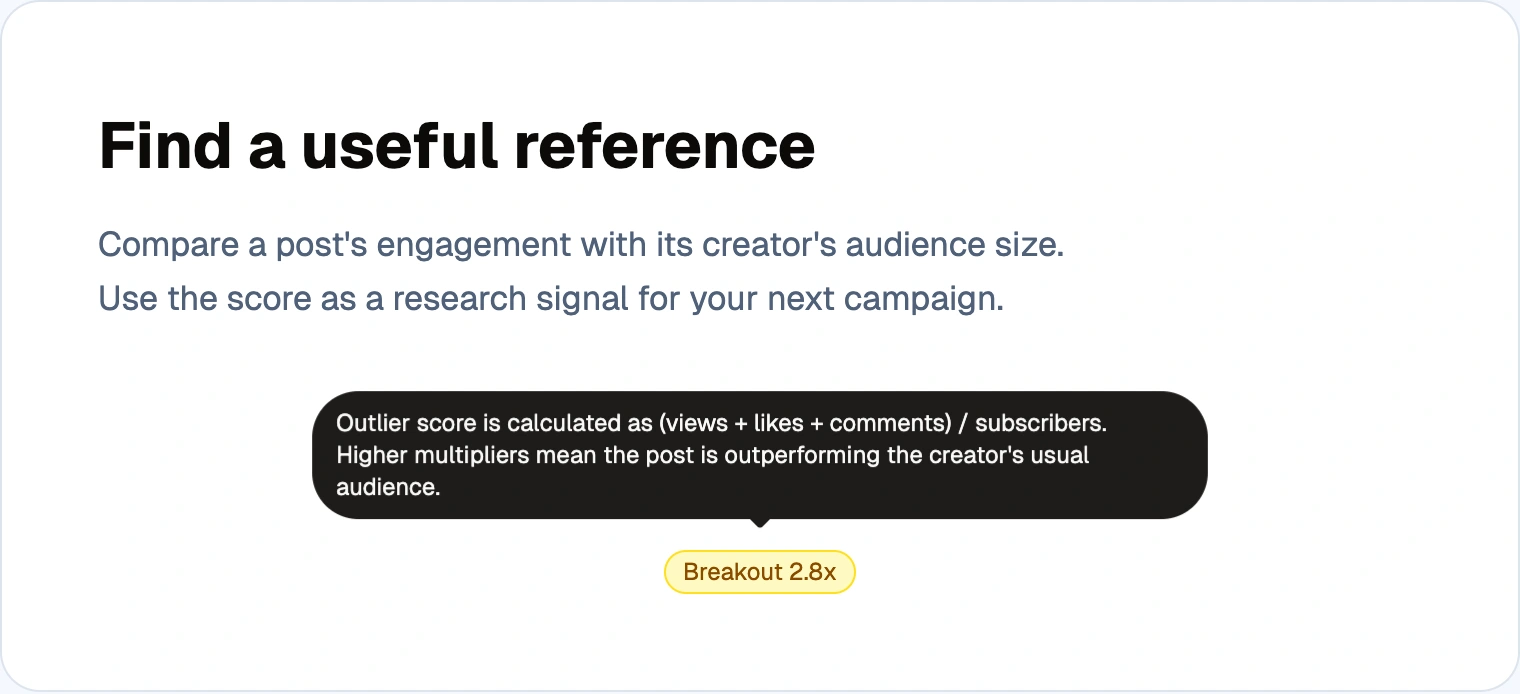
The real outlier badge with an illustrative Breakout score and its explanation tooltip
When browsing an Instagram profile, TikTok profile, or YouTube channel, use Sort by outlier to surface posts with stronger performance relative to the creator's audience. Fetching an outlier ranking costs 10 credits, as shown on the control.
The score compares views, likes, and comments with audience size; it isn't a prediction of how your own content will perform. The selectors now open beside your canvas, so you can keep your flow in view while choosing references.
Copy formatted text or Markdown
The real Copy formatted and Copy Markdown actions for taking a newsletter draft into an editor
Use Copy formatted to carry headings, lists, and other supported formatting into an editor that accepts it, or Copy Markdown when you want the Markdown source. These actions are available on chat messages and supported text results. If your browser cannot copy formatted content, the app falls back to plain text and tells you.
Leave notes on your canvas
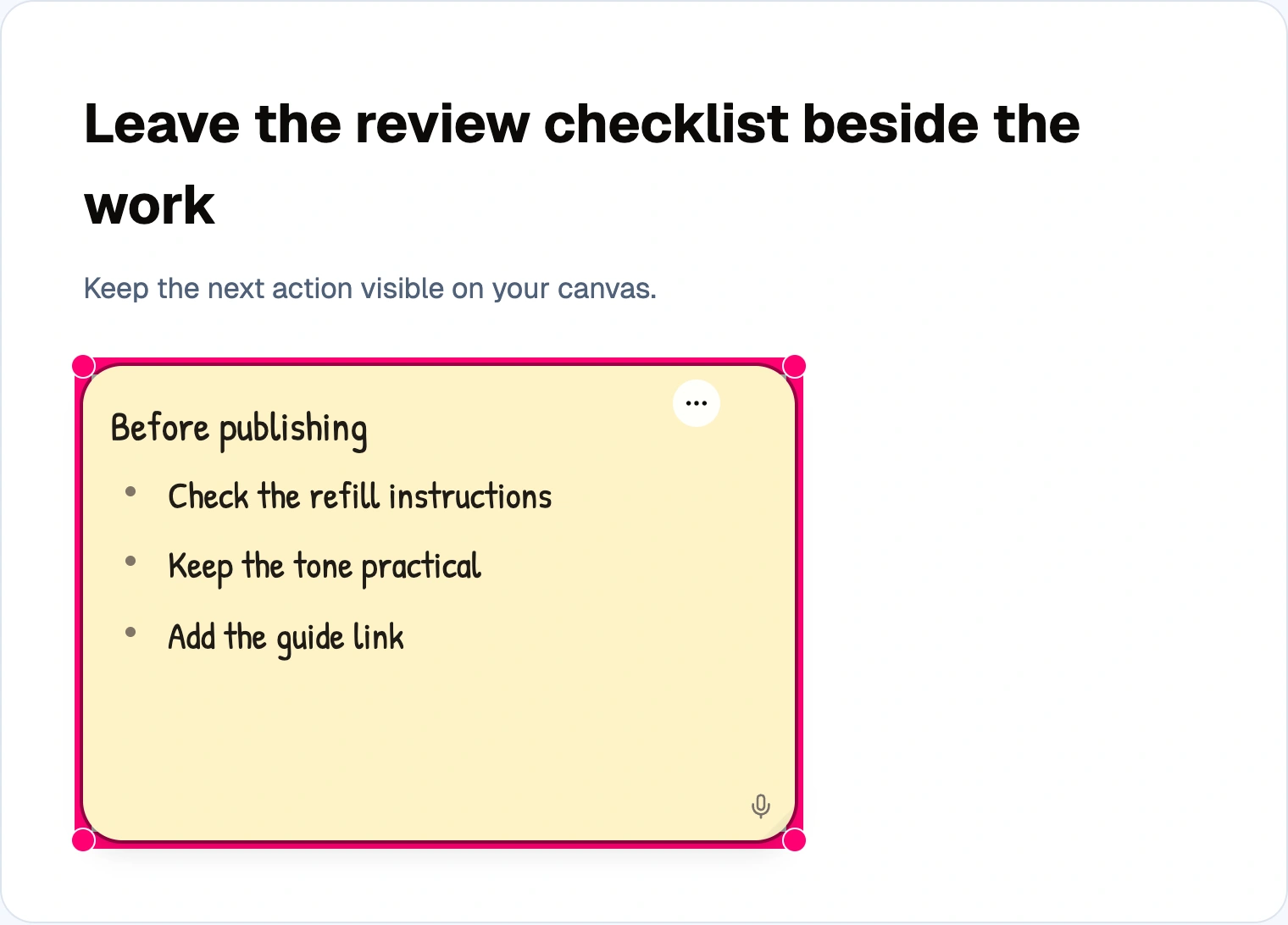
An actual yellow Sticky Note node containing a refill-campaign review checklist
Add a Note for a content brief, a reminder, or feedback beside the work it refers to. Sticky notes have editable text, resizing, and a choice of colors. Use them to explain the purpose of a section of your flow or leave a review checklist beside a draft.
Reuse your image settings
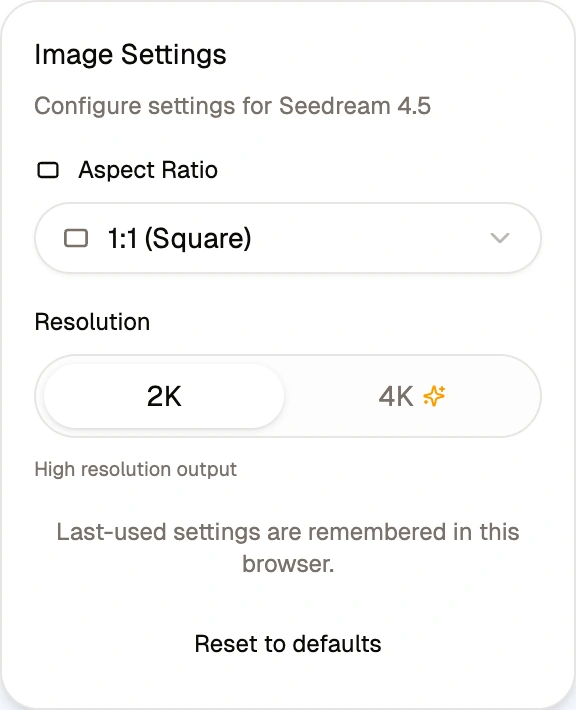
The Seedream 4.5 settings popover showing aspect ratio, resolution, and the remembered-settings notice
Image generation remembers your last-used settings per model in your browser. When you add another image node or switch models, compatible remembered settings can be reused—handy when you're making a series of images in the same format.
More text and image models
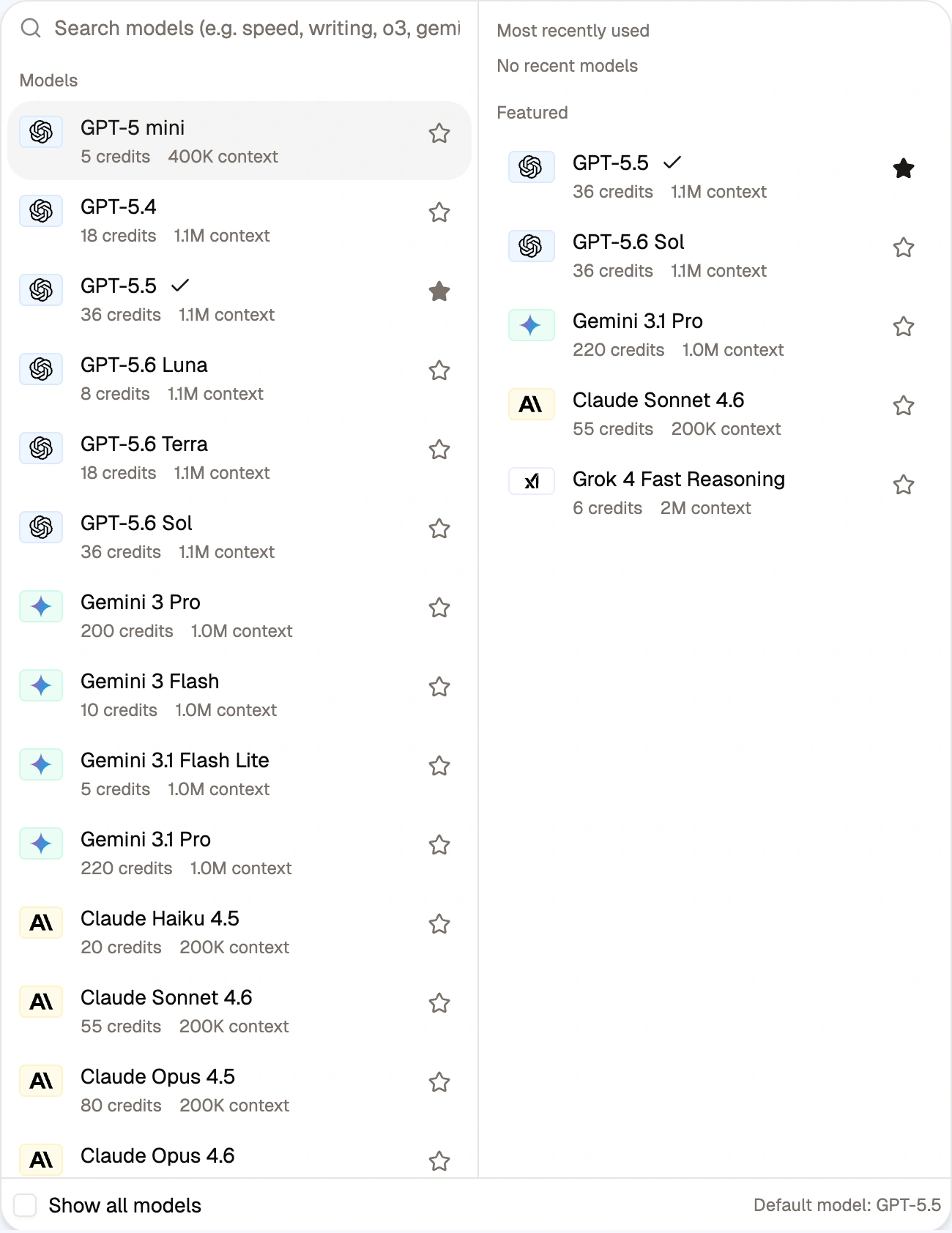
The actual text-model picker showing GPT-5.4, GPT-5.5, GPT-5.6 variants, and Gemini options
The model additions since our March roundup that weren't listed in the August article are:
- Text: GPT-5.4, GPT-5.5, GPT-5.6 Luna, GPT-5.6 Terra, GPT-5.6 Sol, Claude Opus 4.7, Claude Opus 4.8, Gemini 3 Flash, and Gemini 3.1 Flash Lite.
- Images: GPT Image 2, Seedream 4.5, and Seedream 5 Lite.
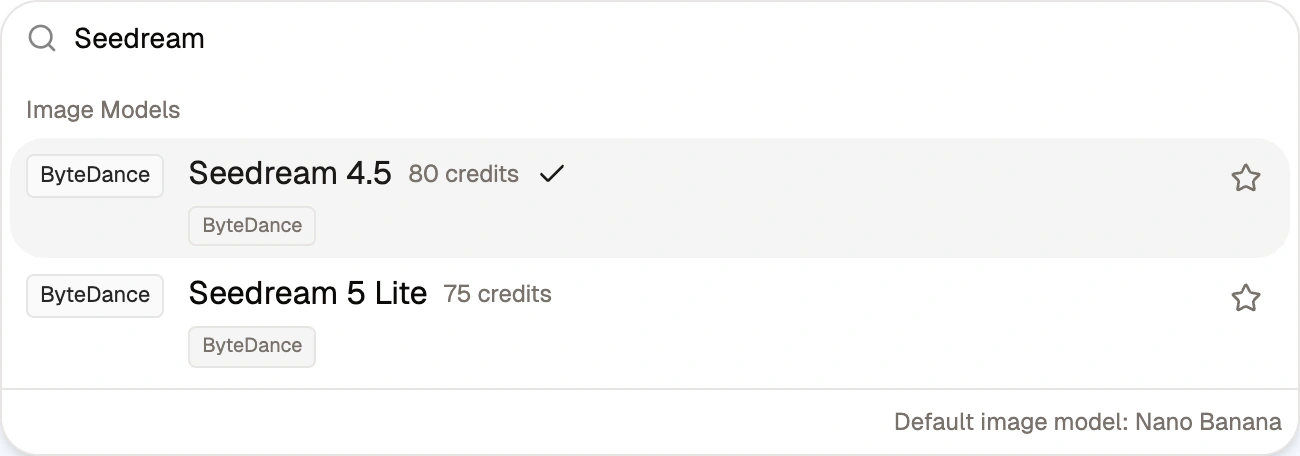
The actual image-model picker filtered to Seedream, showing Seedream 4.5 and Seedream 5 Lite
Choose from the model picker, or visit Models & Credits to compare the available options and their credit costs. Supported chat responses can also display a collapsible reasoning section when the model returns one.
Clearer run progress and account controls
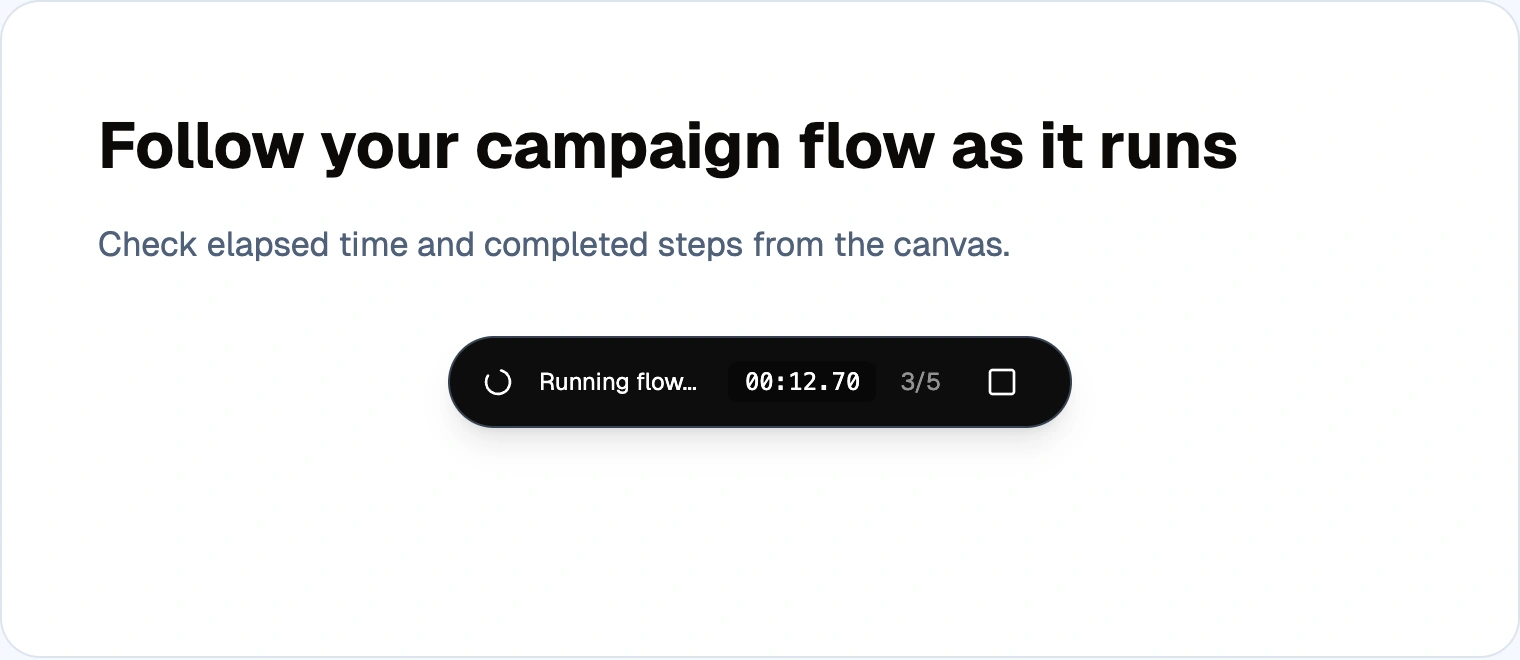
The real run-status component showing elapsed time, three of five steps completed, and a stop control in an illustrative run
The canvas run-status display shows active runs, elapsed time, and node progress, with controls to stop a run. Run-state recovery has also been improved so reconnecting to an ongoing run restores its progress display.
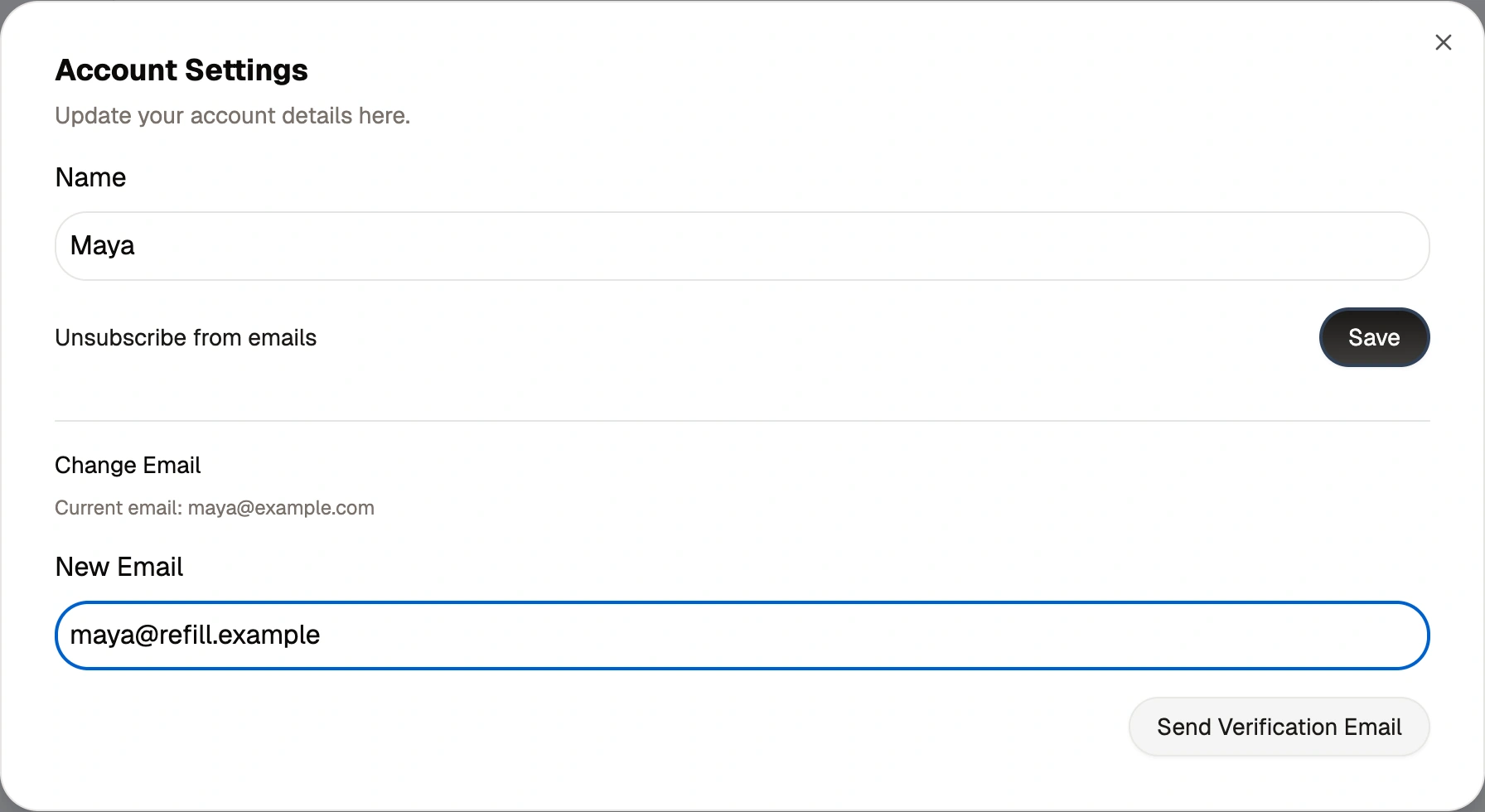
The real Account Settings dialog filled with fictional account details and a new email address awaiting verification
You can change your email from Account Settings → Change Email and follow the verification steps to confirm the change.
Already covered in the previous update
If you missed Turn Conversations Into Repeatable Workflows, it covers:
- Automated multi-turn Chat workflows.
- Seven-day flow version history and recovery into a separate flow.
- Reusable groups linked across your own boards.
- Instagram post and carousel inputs.
- Sticky labels when zooming out, plus Chat node renaming.
- Safer text and Markdown file previews.
- Faster flow-library loading, search, filters, and sorting.
- Default-model stars and prompt-library improvements.
Instagram Reel transcripts now also have a clearer Transcript label, making them easier to distinguish from other imported post content.
Open a flow with a few related chats and bring them together. Start with the conversations for one campaign, client, or weekly content task—and give each its own tab.
Alex
Continue Reading
Discover more insights and updates from our announcements
Automate multi-turn Chat nodes, recover recent flow versions, reuse shared groups, bring Instagram posts into workflows, and keep large canvases readable.
Turn any group into a shared building block, link it across your flow boards, and update every use from one original.
Feature Update 1.1 introduces new text and image models, folders, image settings, Notion page integration, node organization, and multi-video imports.