AI Flow Chat's latest update makes complex workflows easier to run, recover, reuse, and read. Chat conversations can now become repeatable workflow steps, while version history, reusable groups, richer Instagram inputs, and clearer zoomed-out canvases help you build with more confidence.
Automate a multi-turn Chat workflow
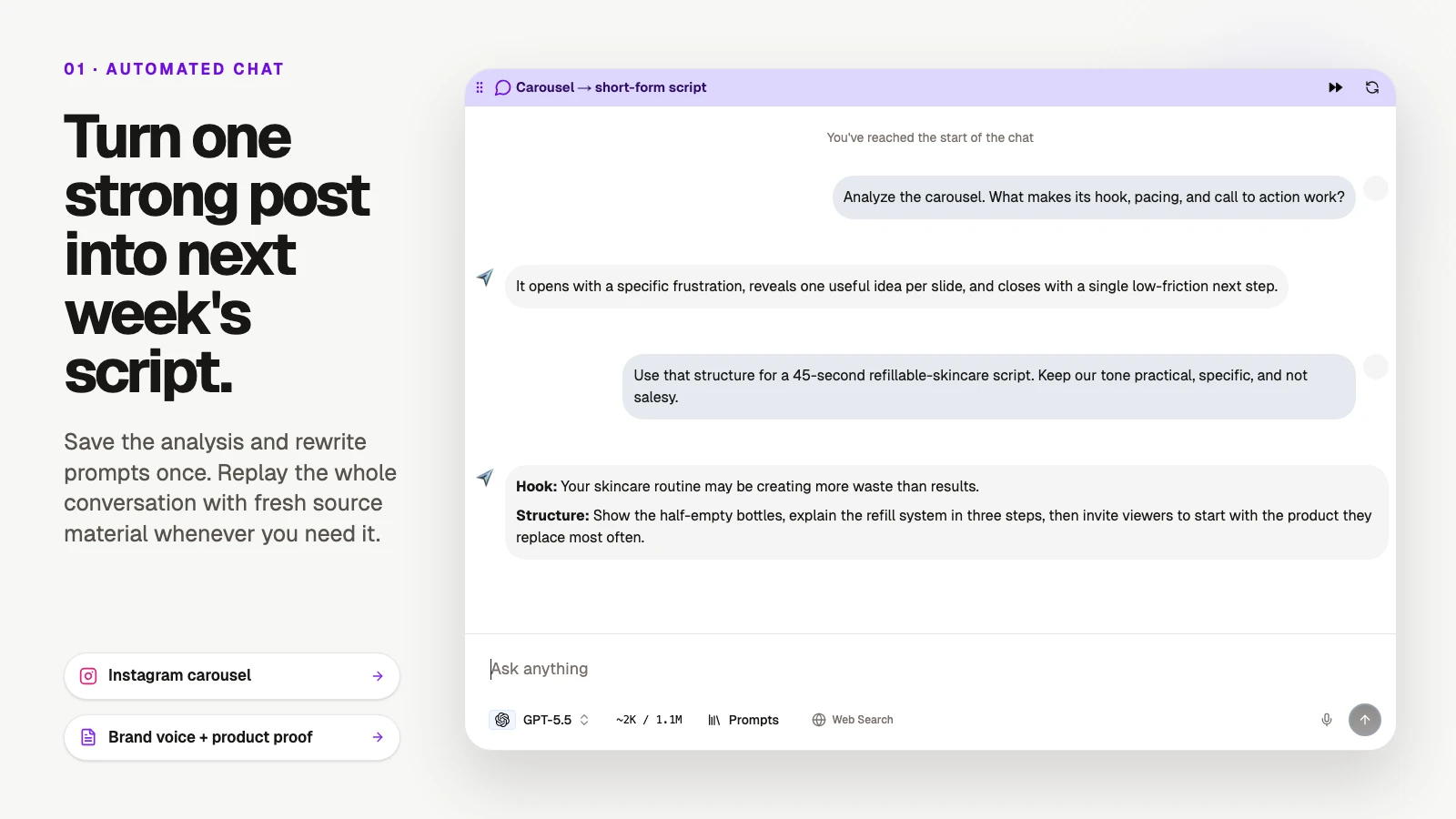
Chat node replaying a two-turn carousel analysis into an on-brand short-form script
A Chat node can now replay a saved conversation as part of a flow run. This turns an interactive back-and-forth into a repeatable workflow step without flattening the conversation into one large prompt.
To use it:
- Add a Chat node, then choose the model and tools you want available.
- Build the conversation by sending the user messages you want to replay.
- Select Run This, or use Run All to include the Chat node in the complete flow.
Each run starts a fresh conversation and replays the saved user messages in order. New assistant responses are generated for that run, and each response becomes context for the next turn. Connected upstream outputs are included too, so the conversation can work from earlier research, files, reusable groups, or generated content.
The selected model is used for every turn, and saved tools remain available throughout the conversation. Credit cost is the selected model's cost multiplied by the number of saved user messages. If a turn fails, the run stops immediately and downstream nodes do not continue.
If you published an app before this update, republish it once to enable Chat replay in that app.
Recover a flow without overwriting your work
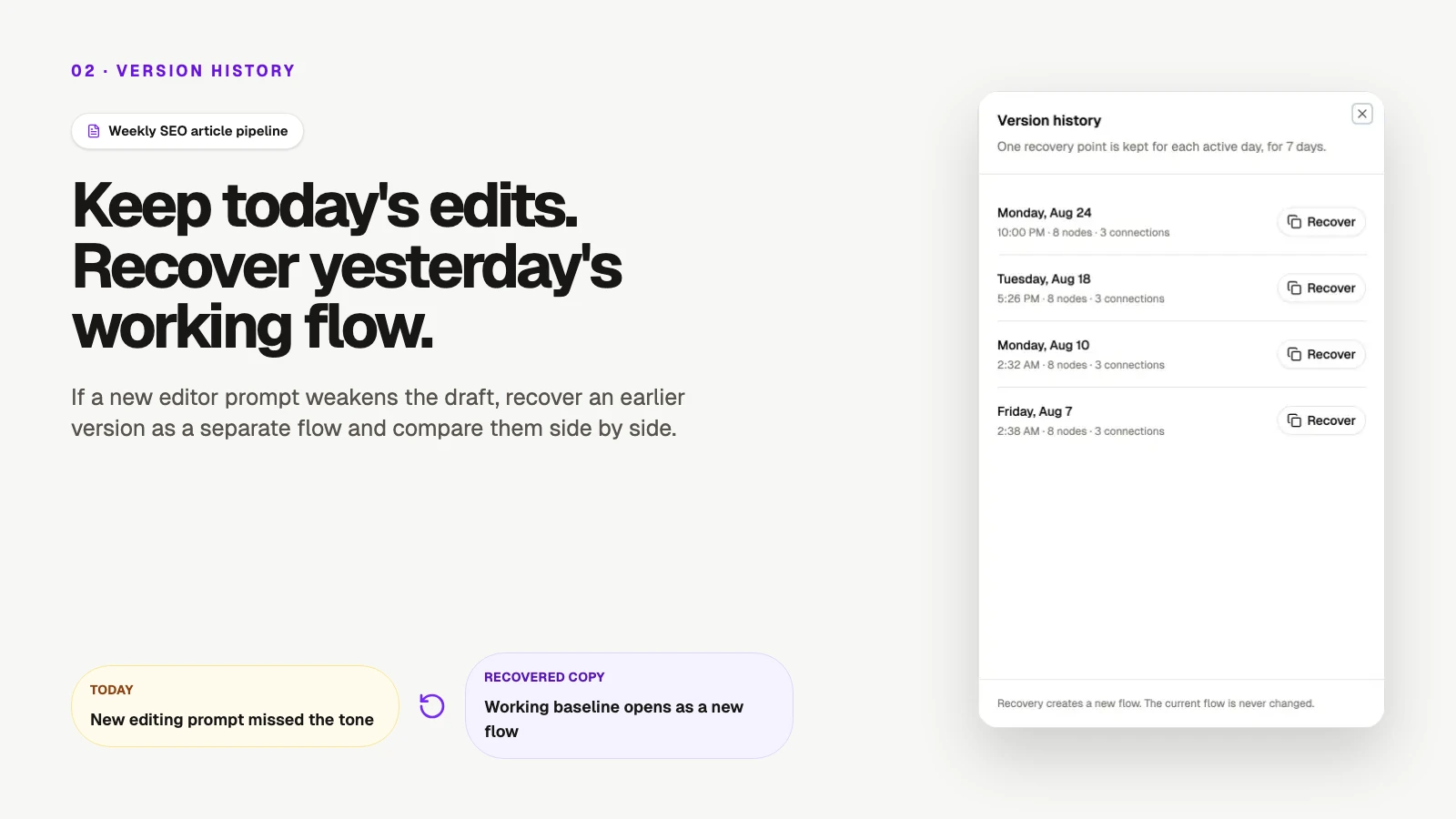
Version history used to recover a working SEO article workflow as a separate flow
Flow version history keeps one recovery point for each day you actively edit a flow, for seven days. Open History on the canvas to see when each version was saved, along with its node and connection counts.
Selecting Recover creates a new flow from that version. Your current flow is never overwritten, so you can inspect or reuse earlier work without giving up today's version. Existing media references are carried across when the files are still available; files that were deleted cannot be recreated from history.
You can also open the menu on a flow in the library and select Recover history.
Build shared workflow blocks with reusable groups
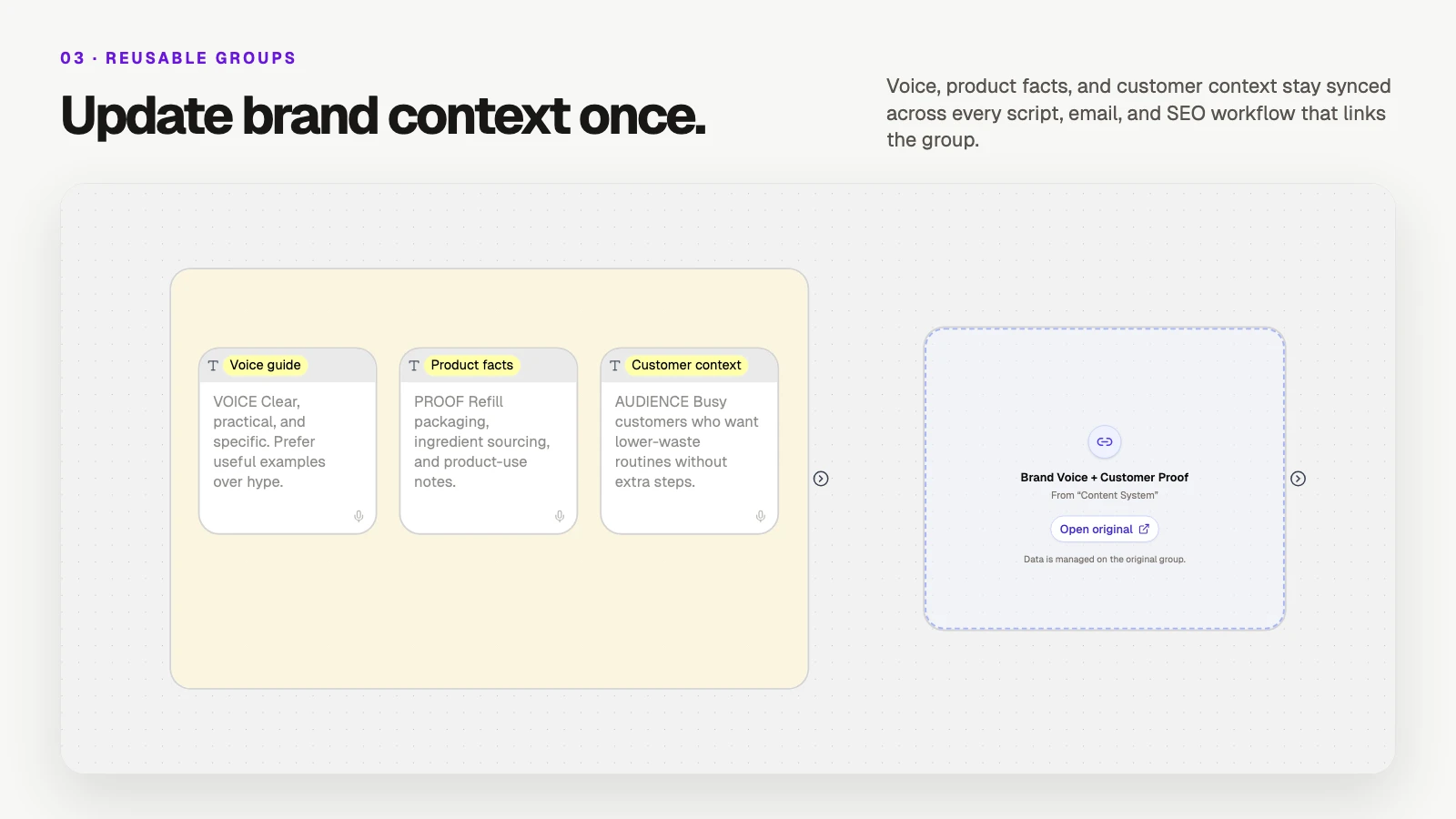
A populated Brand Voice and Customer Proof group beside its linked reusable reference
Turn a Group into a shared building block, then link it from your other flow boards. Every linked reference stays synchronized with the original, making reusable groups useful for brand context, research inputs, prompt systems, and other workflow sections you maintain in one place.
Create one from the Group header with Make reusable. In another flow, add an empty Group, choose Link reusable group, and select the source. Linked references are read-only: use Open original to make changes at the source. Unlink returns the reference to an empty Group rather than making a stale copy.
Reusable groups work across flow boards you own. Shared and published views do not reveal private details about the source board. For a deeper walkthrough, see Build Once, Reuse Everywhere.
Use Instagram posts and carousels as workflow inputs
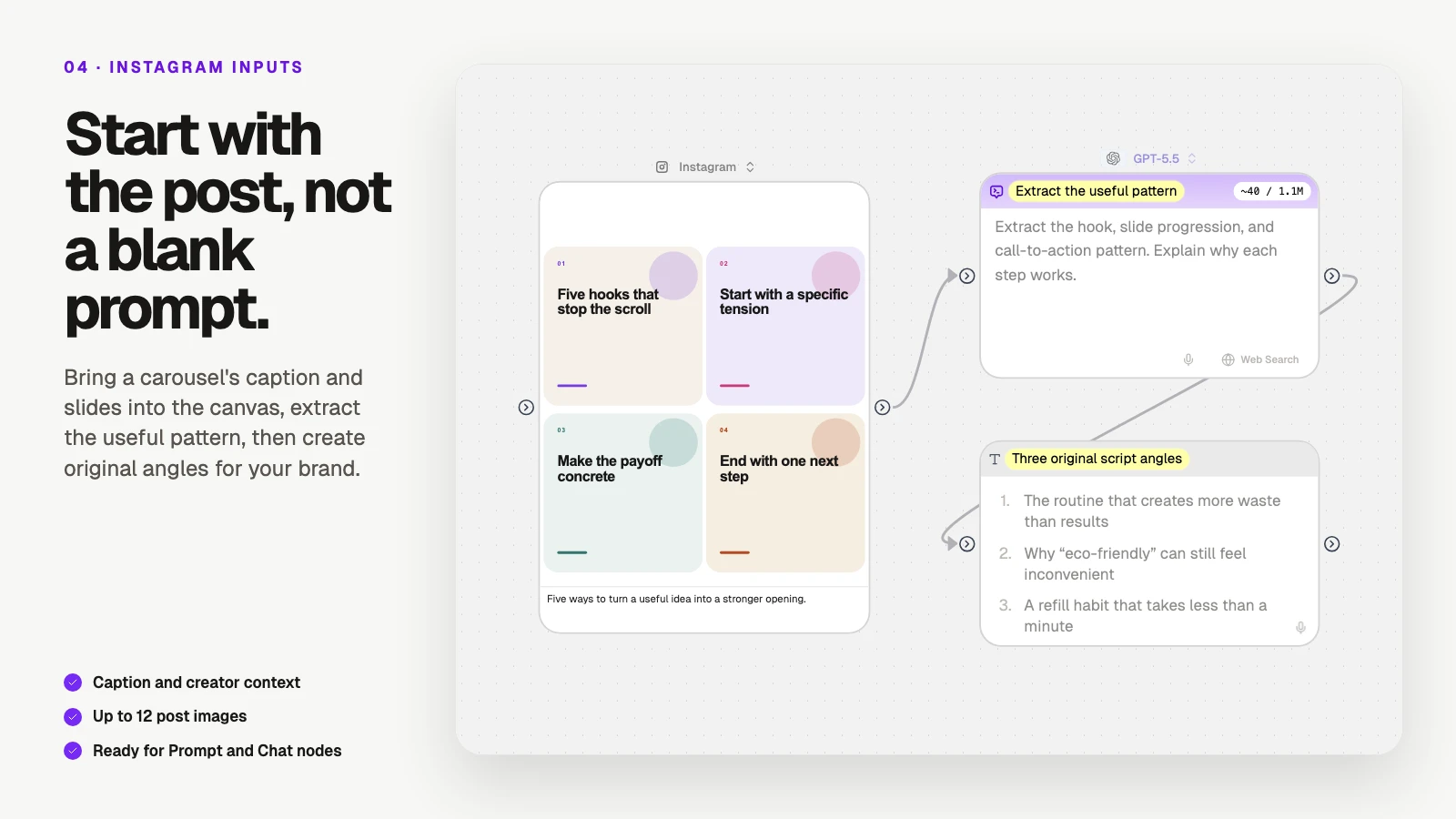
Instagram carousel feeding a prompt that extracts its pattern and produces original script angles
The Instagram Web input now accepts regular posts and carousels in addition to Reels.
Open Web, find Instagram, choose Paste URL, and paste a Reel, post, or carousel link. When you run the node, AI Flow Chat collects the available caption, creator and engagement context, plus up to 12 post images. Those outputs can feed directly into Prompt, Chat, and image workflows.
Keep zoomed-out canvases readable
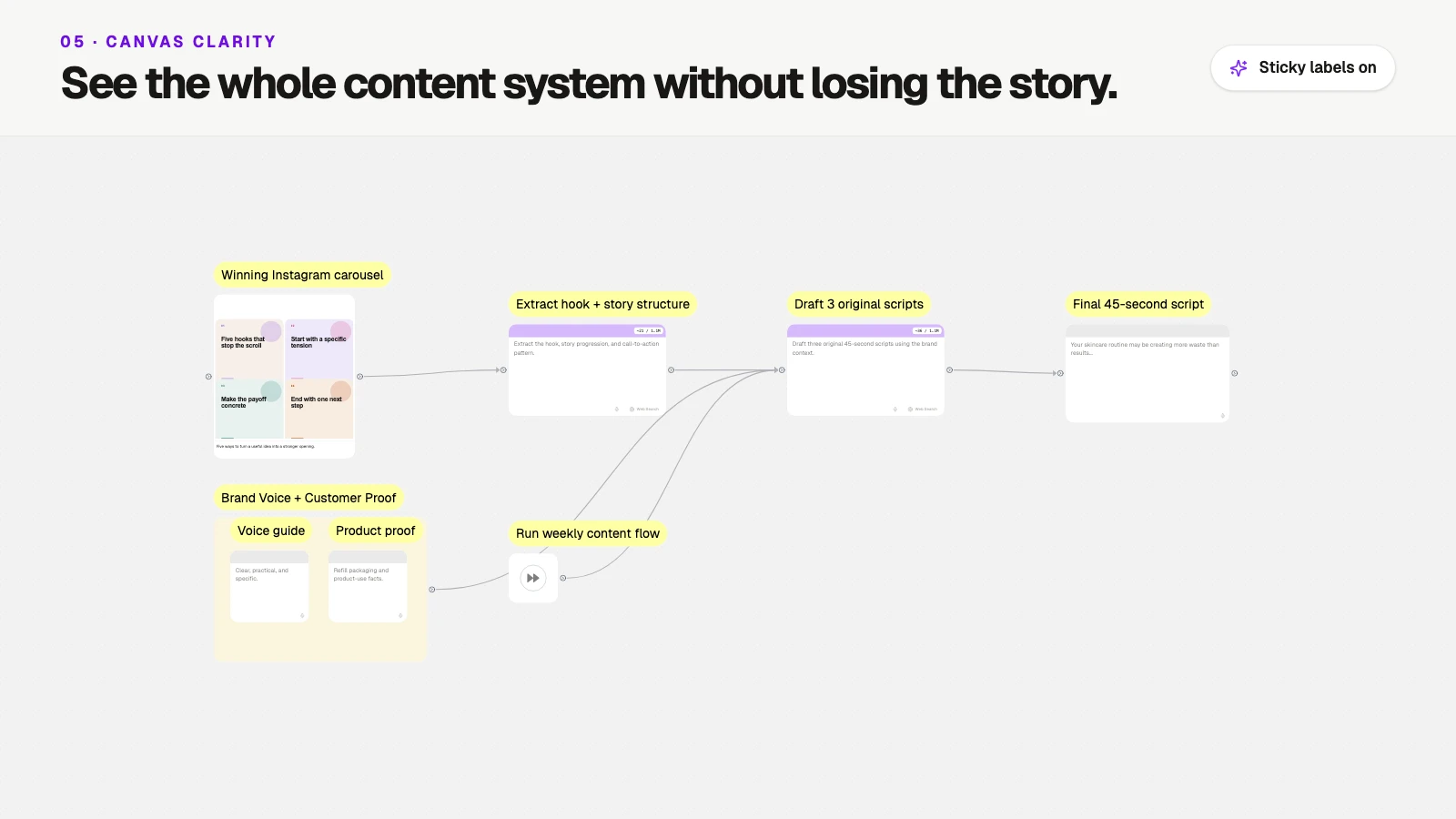
Zoomed-out content production flow with sticky labels identifying every source, step, and output
When you zoom out, nodes now keep a compact label above them instead of becoming anonymous shapes. Custom labels take priority; otherwise AI Flow Chat uses useful content such as a prompt title, file name, website hostname, integration name, or Chat title.
Use the sticky-label control in the top-right corner of the canvas to hide or show the labels. You can also right-click a Chat node and choose Rename to give it a more useful title before zooming out.
Bug fixes and workflow refinements
Safer text and Markdown file previews
Plain-text files now use a text-native preview, while .md and .markdown files render as Markdown. Large previews are limited to the first 100,000 characters and show a clear notice when content has been truncated, avoiding an attempt to render an unlimited document in the browser.
Faster flow-library loading
The flow library now loads 30 projects at a time and applies folders, search, node filters, and sorting before results are returned. Pinned and unpinned projects load in parallel, template sections are deferred, and Load More keeps large libraries responsive without fetching everything up front.
Model and prompt workflow improvements
Common model and prompt choices are easier to reuse. On paid plans, you can star an enabled model to make it your default. The prompt library now has clearer create and edit flows, plus search and preview before you use a saved prompt. Image nodes also expose Browse prompts and Save prompt directly from the prompt input.
These updates are available now. Open a flow, add a Chat node, and turn a useful conversation into your next repeatable workflow.
Continue Reading
Discover more insights and updates from our announcements
Keep related conversations together in one tabbed Chat node, move them apart when you need to, and catch up on the improvements we haven't announced yet.
Turn any group into a shared building block, link it across your flow boards, and update every use from one original.
Feature Update 1.1 introduces new text and image models, folders, image settings, Notion page integration, node organization, and multi-video imports.